OBDeleven not connecting via Bluetooth: Setup and connection guide
The OBDeleven device is not paired like a classic headset from the phone's Bluetooth settings; the connection is initiated from within the OBDeleven app. A large portion of the problems searched as "OBD11 not connecting" in Turkey are caused by the wrong app, closed ignition, missing Bluetooth/location permission, low vehicle voltage, or the device not fitting properly into the OBD2 socket. The following sequence is prepared based on official OBDeleven troubleshooting documents.
Use the Connect button in the app, not pairing from phone settings.
Device visible, vehicle not found
Is the ignition on, is the device fully seated?
Wait 20-30 seconds; check vehicle compatibility and the correct app.
Constantly loading
Internet, VPN/proxy, and account session
Switch networks, log out and log back in, and update the app.
Connection dropping
OBD socket, extension cable, and vehicle voltage
Remove the extension cable; test with another phone and, if possible, another vehicle.
Requesting plan/Credits
Connection established, operation selected may be the reason
Plan and Credits are not for connection; they are for One-Click Apps and advanced functions.
Summary of OBDeleven VAG and main OBDeleven app selection alongside the real OBDeleven 3 device
Decision guide
First, determine the device generation and the correct app
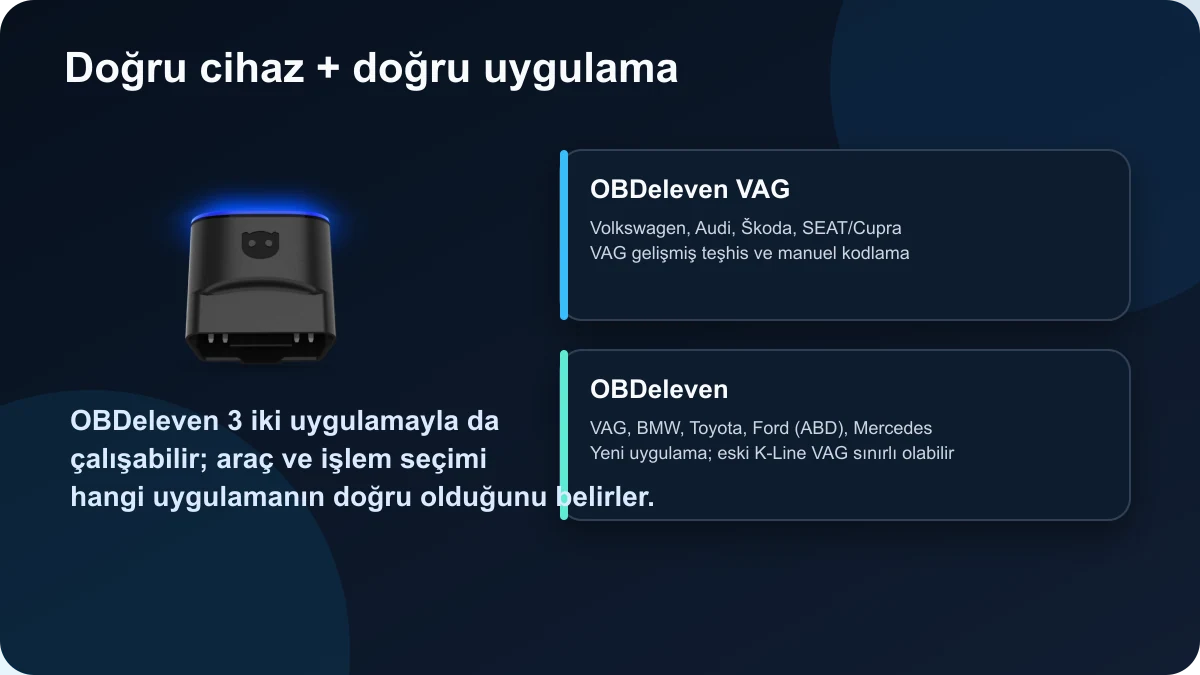
OBDeleven 1 (FirstGen), OBDeleven 2 (NextGen), and OBDeleven 3 do not have the same connection scope. FirstGen works only with Android and the OBDeleven VAG app. OBDeleven 2 and OBDeleven 3 support both iOS and Android and can be used with two apps. The OBDeleven VAG app remains important for advanced diagnostics and manual coding in VAG vehicles; the main OBDeleven app is used for brands like BMW, Toyota, Ford, Mercedes, and others. The main app does not yet support some older K-Line VAG vehicles. Selecting the wrong app can lead to the device not being found at all or vehicle modules appearing incomplete.
FirstGen: Android + VAG app
NextGen and OBDeleven 3: iOS/Android
VAG manual coding: VAG app
Other supported brands: main OBDeleven app
Steps for plugging in the device, turning on ignition, granting permissions, and connecting from the app in OBDeleven Bluetooth connection
Decision guide
How is the first connection with OBDeleven 3 made?
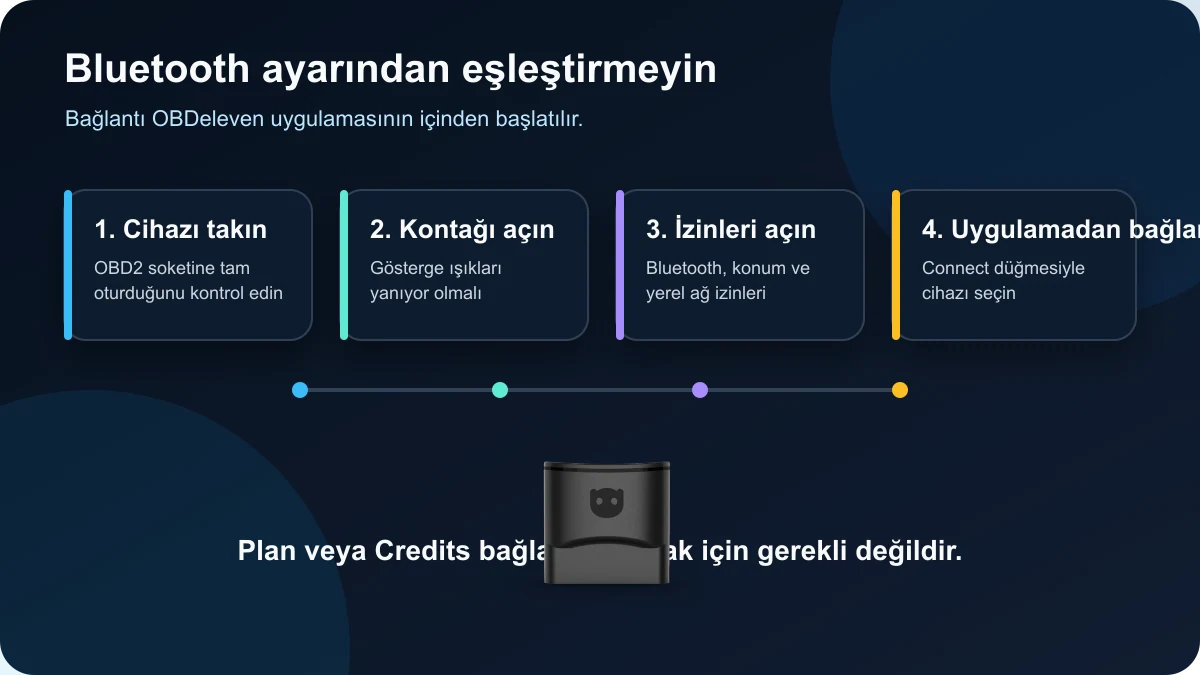
Fully insert the device into the vehicle's OBD2 socket, turn the ignition on, and confirm that the indicator lights are on. Turn on Bluetooth on your phone; grant Bluetooth, location, and local network permissions to the app. Then, open the OBDeleven app and tap the Connect button on the main screen, and select the device from the list within the app. You may be prompted to create a device password during the first connection. Once connected, the scan command will appear on the main screen. Trying to pair the device separately from the phone's Bluetooth settings is not necessary.
Insert the device fully into the OBD2 socket
Turn on the ignition
Enable Bluetooth and necessary permissions
Initiate the connection from within the app
Decision guide
Why can't the phone find the OBDeleven device?
The most common reason is Bluetooth or location permission being off. On iOS, the app's location/local connection permissions must be enabled for Bluetooth scanning. On Android, battery saving may restrict the OBDeleven app in the background. If the device is not visible, turn Bluetooth off and on, restart the phone, delete registered devices in the app, and use the Connect button again. If you are using OBDeleven 2 or 3, trying both official apps separately depending on the vehicle type can also help with diagnosis. If the problem persists on another phone, the device, OBD socket, or vehicle power supply should be checked separately.
iOS: Bluetooth, location, and local network permissions
Android: Bluetooth, location, and battery optimization
Do not pair from the phone's system Bluetooth menu
Cross-check with another phone
Decision guide
Bluetooth connects, but why isn't the vehicle recognized?
Bluetooth connection only indicates communication between the phone and the device; communication with the vehicle's ECUs is a separate stage. After turning on the ignition, wait 20-30 seconds, reseat the device, and try scanning again. Very low battery voltage, a loose OBD2 socket, incompatible vehicle/protocol, or the wrong app can prevent vehicle recognition. Since the main OBDeleven app is limited on older K-Line VAG models, the VAG app and device generation should also be checked for vehicles like Golf 4, Passat B5, or similar eras.
Ignition must be on and voltage sufficient
OBD2 socket must not be loose
Vehicle/protocol and app must be compatible
Bluetooth connection does not mean full system access
Decision guide
Constantly loading, server error, or internet warning
Since OBDeleven uses cloud-based account and data services, an unstable internet connection can cause the app to load indefinitely. Try mobile data instead of Wi-Fi, or reliable Wi-Fi instead of mobile data; turn off VPN and proxy. Log out and log back into your account, check for app updates, and restart your phone. If your plan or Credits are not visible on a new phone, ensure it belongs to the same account using the same email, Apple ID, Google, or social login method as the previous session. Plans and Credits are tied to the account, not the device.
Change network
Turn off VPN/proxy
Log in with the correct OBDeleven account
Check for app updates
Decision guide
Why is the connection dropping?
A loose fit of the device in the socket, an OBD extension cable, a weak vehicle battery, phone battery saving, or issues with the app session can cause interruptions. Official support first recommends plugging the device directly into the socket, removing the extension cable, checking the vehicle's battery status, and reinstalling the app. If the connection drops during coding or adaptation, instead of forcing the same operation repeatedly, save the current values, stabilize the vehicle voltage, and open a support ticket with the error screen.
Remove the OBD extension cable
Check the vehicle battery
Disable phone battery saving
If disconnection occurs during coding, do not force the operation
Decision guide
Are PRO, ULTIMATE, or Credits required for connection?
No. Official OBDeleven support explicitly states that a paid plan or Credits are not required for the device to connect to the vehicle. The device and FREE plan offer basic fault reading-clearing and live data functions. PRO unlocks manual VAG coding and adaptation menus; Credits are used for ready One-Click Apps; ULTIMATE combines PRO functions with supported ready applications under fair usage. Trying to resolve a connection error by purchasing a plan is not the correct diagnosis.
Connection: device + app
Basic diagnostics: FREE plan
Manual VAG coding: PRO or ULTIMATE
Ready One-Click Apps: Credits or ULTIMATE
Decision guide
What information should I prepare when opening a support ticket?
If the problem repeats on a different phone and vehicle, open an official support ticket. Send the device generation, phone model and operating system version, vehicle make-model and model year, the exact name of the app you are using, and the error message on the screen. If possible, attach a screenshot of the error, the device serial number, and proof of purchase. Stating what happened at which step, rather than just saying "it won't connect," will shorten the resolution time.
Device: FirstGen, NextGen, or 3
Phone and operating system
Vehicle and model year
App name and error screen
Frequently Asked Questions
Most frequently asked questions by customers
Is the OBDeleven device paired from the phone's Bluetooth settings?
No. Turn on Bluetooth and select the device via the Connect button in the OBDeleven app.
Does OBDeleven 3 work with iPhone?
Yes. The current product requirement is iOS 16.6 and above; Bluetooth and local connection permissions must be enabled.
What should the OBDeleven 3 Android version be?
The official product page specifies Android 8.0 and above. Battery optimization should not restrict app connection.
The device light is on, but the app doesn't see it; what should I do?
Check ignition, Bluetooth/location permissions, and the correct app; connect from within the app after pairing in the system Bluetooth menu.
Does OBDeleven work offline?
It establishes Bluetooth vehicle connection; stable internet is required for account, data, and some functions. Not all features can be reliably used without server/account access.
Could the device not be connecting because my plan has expired?
No. A plan is not a prerequisite for connection; the account reverts to FREE level upon expiration.
Why does OBDeleven see the car but not the ECUs?
It could be the wrong app, an old K-Line protocol, low voltage, vehicle security layer, or model/operation incompatibility.
What does the "Device not authorised" or "Validation Failed" error mean?
Reinstall the app and log in with the correct account. If the problem persists, contact official support with purchase information and device serial number.
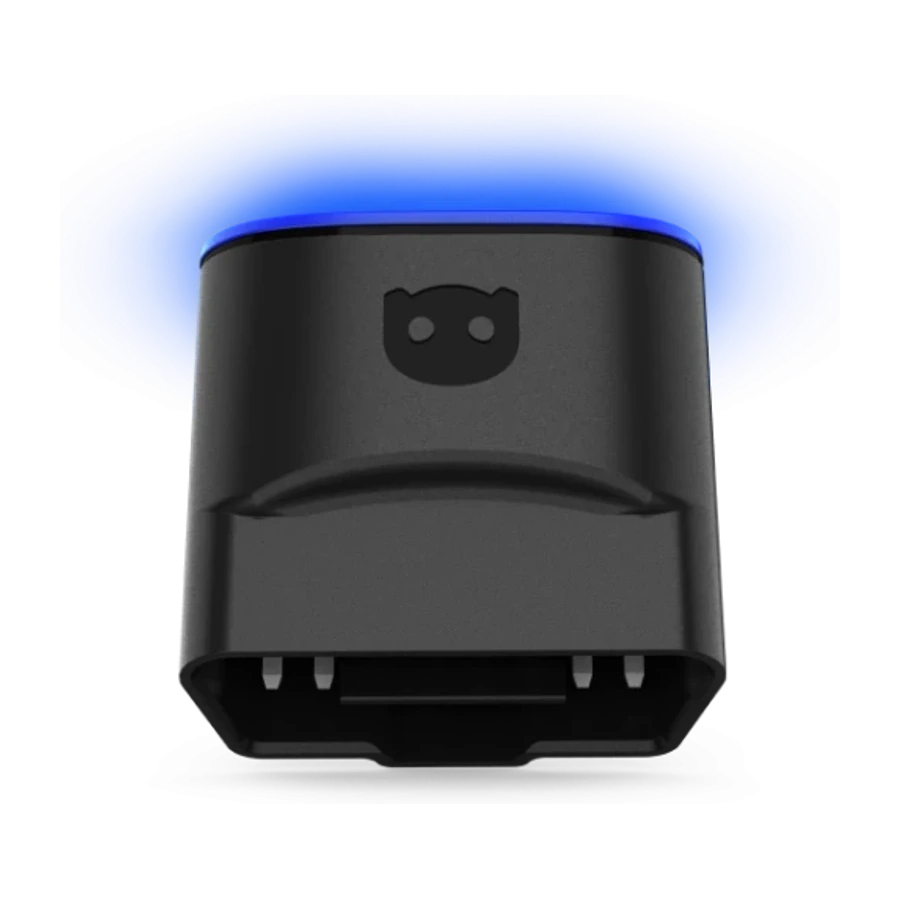
OBDeleven 3 is a mobile device that works via Bluetooth with Android, iPhone, and HarmonyOS phones, combining basic OBD2 diagnostics with advanced scanning, One-Click Apps, and VAG coding options in a single application for supported brands.
Read, clear fault codes, and view live data from phone
Manual coding and adaptation with supported plans in Volkswagen Group vehicles
Ready-made operations with One-Click Apps in supported vehicles