Quick comparison
Difference between demo mode and real connection
Although both uses appear in the same application, their effects on the vehicle and requirements are different.
Decision guide
What is demo mode used for?
The primary purpose of the demo mode is for the first-time user of the MBito application to familiarize themselves with the menu structure without touching the vehicle. A model is selected without a real vehicle or adapter, and the organization of the application's function, control unit, and fault record screens is observed. This allows the user to understand the phone-centric usage of the product before purchasing the device.
The official support page states that function activation can be simulated in demo mode, sample vehicle modules can be examined, and clearing of prepared error records can be attempted. The data here is for training; it is not a record read from a real car or applied coding.
Demo mode does not provide a driving test, an inspection report, or vehicle history. The screens the user sees explain the application's workflow; they do not measure the hardware, fault, or software status in their own car.
Decision guide
What areas can be examined in demo mode?
After selecting a sample Mercedes model, the user can navigate through simulated control units, prepared error records, and sample personalization functions. They can see where a function is located in the application, the order in which information is displayed after a vehicle scan, and how pre-operation warnings are presented. This preview facilitates focusing on real vehicle information upon device delivery, rather than searching for menus for the first time.
MBito explicitly states that not all real functions may be available in the demo area. A short demo list does not mean the vehicle is not supported, and a long one does not mean all options will work on that vehicle.
- Select a sample Mercedes model
- Examine simulated control units
- View prepared fault records
- Try sample error clearing workflow
- Familiarize with personalization menus in the application
Decision guide
What does demo mode not do on a real vehicle?
Since demo mode is not connected to the vehicle, it cannot read real fault codes, clear records, change control unit settings, or enable hidden features. Without ignition, Bluetooth, and OBD connection, any success step seen in the application is merely a simulation. This distinction is particularly important for vehicles with a warning light on; clearing the sample code on the demo screen does not affect the warning in the car.
Real fault records can only be read after the device is connected to the OBD-II port on a supported vehicle and the application connection is established. If the physical fault persists, clearing the real code does not constitute a repair; the record may reappear.
If a selected function in demo mode is not found for the user's chassis code in the manufacturer's current vehicle list, it is not assumed to be applicable to the real vehicle. An option requiring hardware or software cannot be activated by name similarity.
Decision guide
Does the demo list show vehicle compatibility?
No. Demo mode teaches the application; it does not replace real compatibility checks. According to MBito's official support, functions vary based on vehicle model, production year, hardware, and software. Two Mercedes vehicles with the same chassis name may have different multimedia or electronic hardware.
Before purchasing, determine the vehicle's chassis and model code, model year, and the desired function. Then, open the relevant profile in MBito's current vehicle and feature list. A function shown in the demo screen but not listed for the vehicle in the real list is not interpreted as guaranteed support.
When a real connection is established, the application displays the vehicle model and VIN information and starts scanning. However, the displayed functions are limited by the vehicle's control units and software status; the results obtained by another user with the same model name cannot be replicated.
Decision guide
How to transition from demo mode to real use?
For real use, install the official MBito application on your phone and plug the MBito OBD device into the OBD-II port under the dashboard on the driver's side. Park the vehicle in a safe location; turn the ignition on, but do not start the engine. Turn on Bluetooth on your phone; on Android devices, location services may also need to be enabled for connection scanning.
The developer registration on Google Play indicates that the application uses an online database for real connections and requires continuous internet access. During connection, the phone's internet, Bluetooth, and vehicle voltage must be stable.
- Check if it is in the vehicle's current feature list
- Securely plug the device into the OBD-II port
- Turn on the ignition, do not start the engine
- Enable Bluetooth connection on the phone
- Find the device using the 'Scan for device' step in the application
- Start vehicle scan after vehicle model and VIN appear
Decision guide
What is the relationship between demo mode and fees/credits?
Seeing a sample operation in demo mode does not mean that function is free in the real vehicle. MBito's official support explains that some functions may require purchase when used with the real device and vehicle. The current credit or payment conditions for the function will be shown when the real vehicle profile is opened in the application.
The credit amount or operation price is not fixed in the guide text; conditions may change. The user first sees the function on their own vehicle, then reads the current terms shown in the application. Demo does not perform this commercial step, and no real transaction fee is deducted from the account.
The same MBito device can be used on multiple Mercedes vehicles; however, according to official support information, feature activation is on a per-vehicle basis. A function purchased for one car is not automatically transferred to another VIN.
Decision guide
How to evaluate demo mode before purchasing?
Demo mode is useful for answering three questions: is the phone-centric menu structure suitable for you, is the sequence of fault and function screens understandable, and where is the type of operation you want to use located in the application's general logic? Even if these are positive, the purchase decision should not be finalized without checking vehicle support.
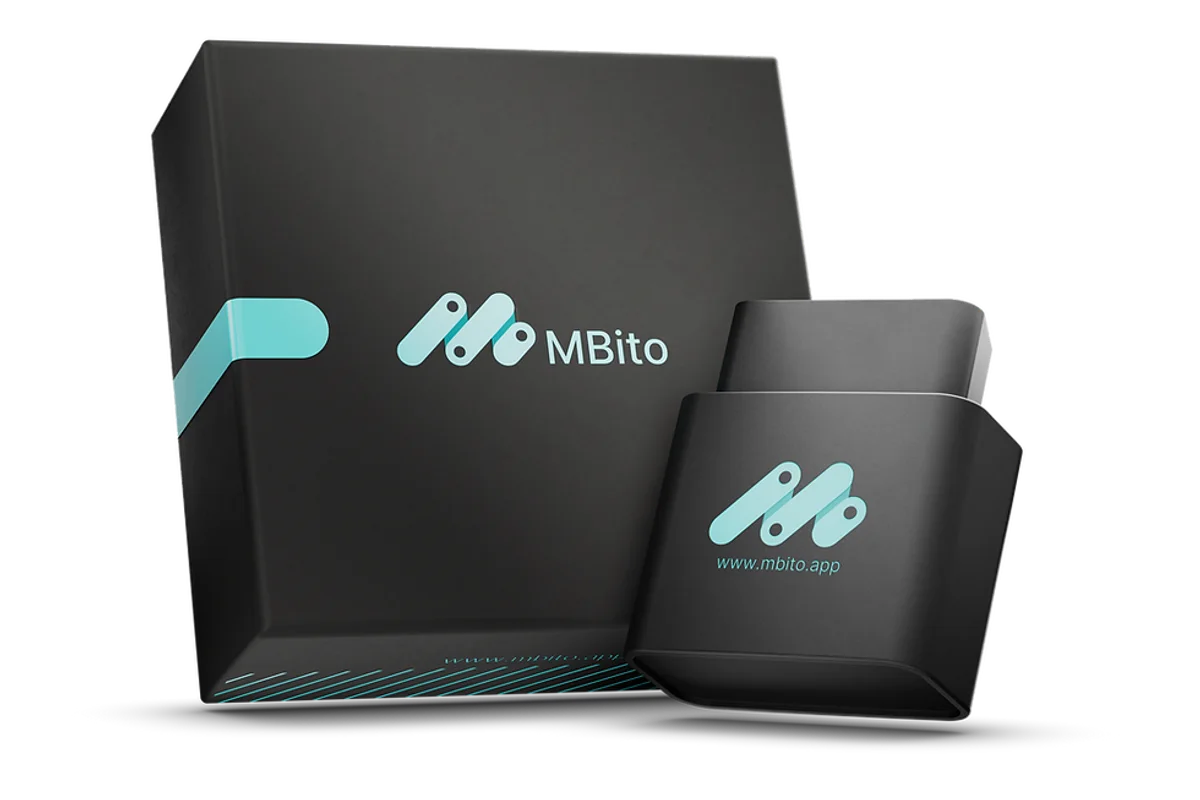
First, see the difference between fault scanning and the personalization menu in demo mode. Then, open your real vehicle code in the MBito list and search for the desired function. Finally, review the current price, stock, and actual product image on the Otobiltek product page.
If the need is for multi-brand service scanning, guided diagnostics, or professional control unit programming, the easy appearance of demo mode does not make MBito a workshop system. MBito is intended for Mercedes owners' supported mobile diagnostic and personalization tasks.
Decision guide
What errors occur if demo and real operations are confused?
The most common mistake is assuming that every option seen in demo mode will be enabled on all Mercedes models. The second mistake is assuming that sample fault records are read from the user's car. The third mistake is evaluating the simulated success screen as a real coding result.
To prevent these confusions, no technical decisions are made on the demo screen. For the real vehicle, the chassis code and desired function are checked; vehicle information is verified upon connection; the application's current description is read before the operation.
If there is a warning light, battery issue, or active fault in the vehicle, proceed only to feature activation. Real records are saved, and appropriate service checks are performed if the physical cause requires it.
Frequently Asked Questions
Most frequently asked questions by customers
Is a device required for MBito demo mode?
No. The demo mode is used to examine the application flow without connecting to a real vehicle or MBito device. An official MBito OBD device is required for actual diagnostics, coding, or feature activation.
Will the features I see in demo mode definitely work on my vehicle?
No. The demo list is for educational purposes and is not proof of vehicle compatibility. Functionality must be checked in MBito's current vehicle list based on vehicle code, model year, hardware, and software.
Does demo mode clear real fault codes?
No. In the demo area, the clearing process is only simulated with prepared sample records. For real fault records, the device must be connected to the vehicle; clearing the code does not constitute a repair if the physical cause persists.
Is it chargeable to perform operations in demo mode?
Demo is a learning and simulation area; it does not purchase real vehicle operation. In actual use, some functions may require credits or purchases, and current conditions will be shown when the vehicle profile is opened in the application.
Can I use the MBito application with a generic OBD adapter?
No. According to MBito's official support page, the application only pairs with the official MBito OBD device. The demo mode, however, can be examined without a connection.
Are all MBito functions visible in demo mode?
Not always. MBito states that not all functions may be available in the demo area. The actual function list varies based on the selected vehicle's model, year, hardware, and control unit software.