Phone Connection Guide

How to connect an OBD2 device to a phone?

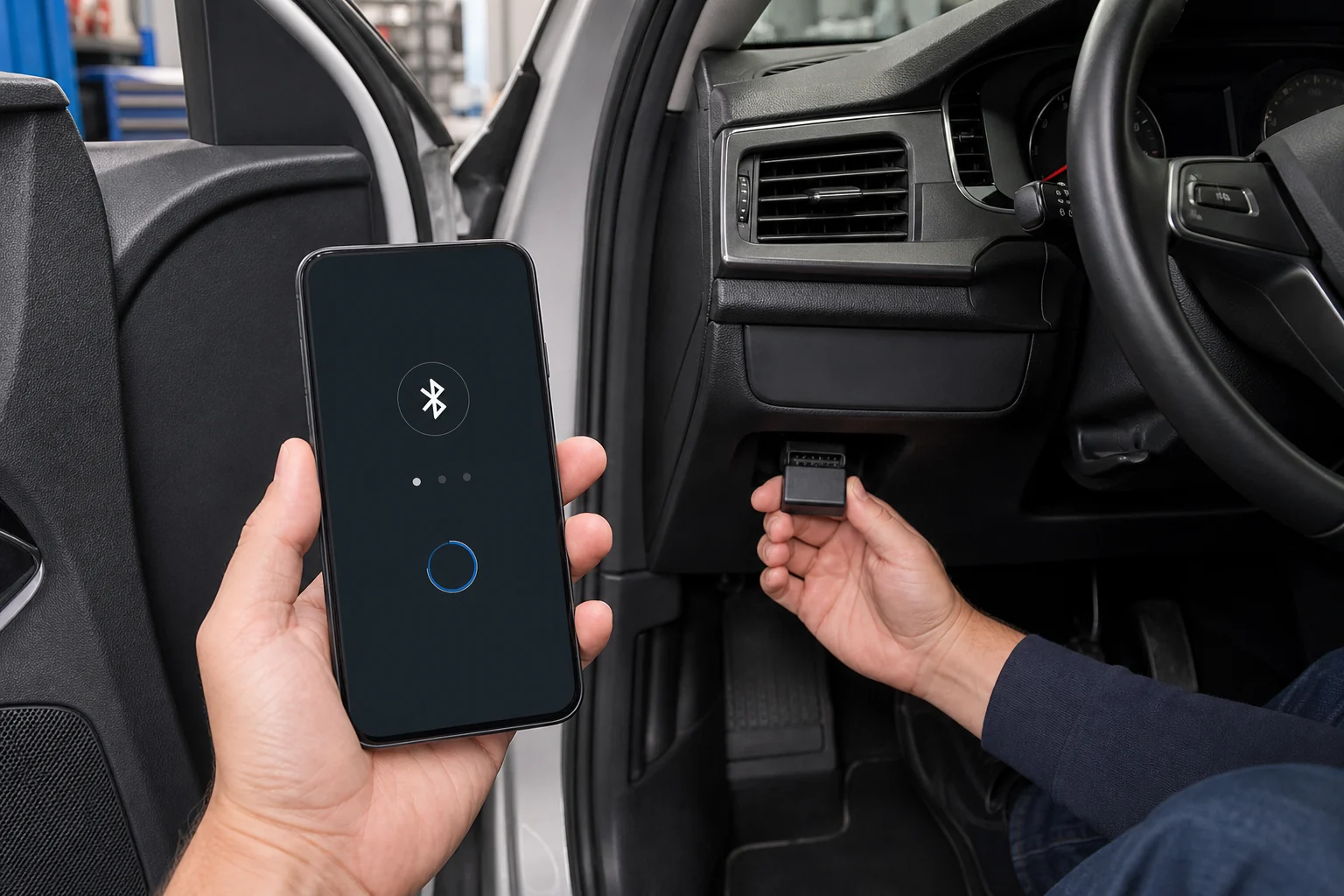
Simply turning on Bluetooth is not enough to connect the OBD2 device to your phone. The connection type the adapter uses with Android or iPhone, the adapter being supported by the chosen app, the vehicle ignition being in the correct position, and the in-app protocol setting must all be correct simultaneously. The flow below provides a safe start regardless of brand; your device-specific pairing name, PIN, app, and ignition information should be based on the product's official instructions.

Prepared by: Otobiltek Content TeamPublication: Technical check:
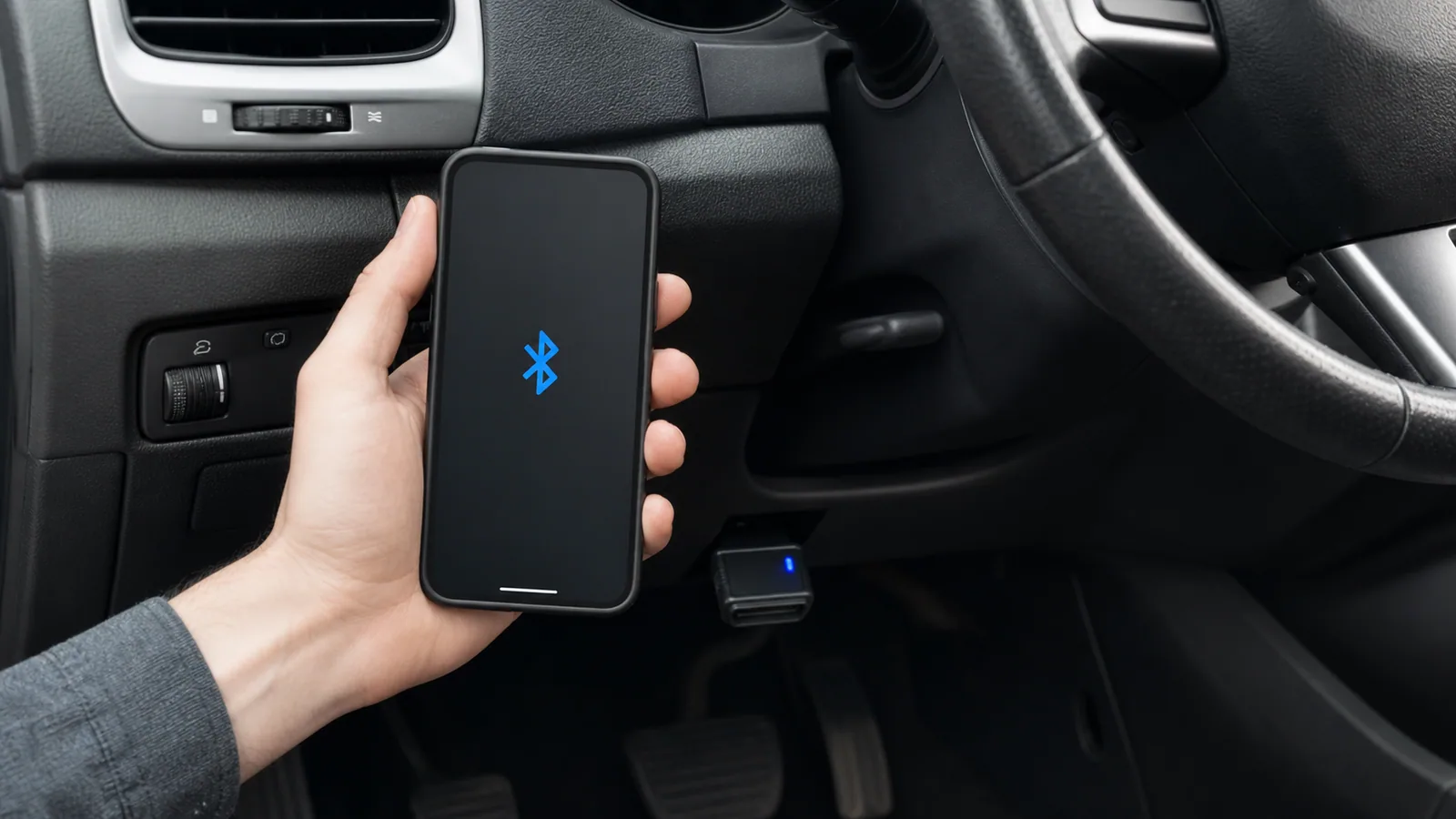
User pairing phone to OBD2 adapter via Bluetooth connection while car is parked

Quick comparison

Determine the connection type correctly

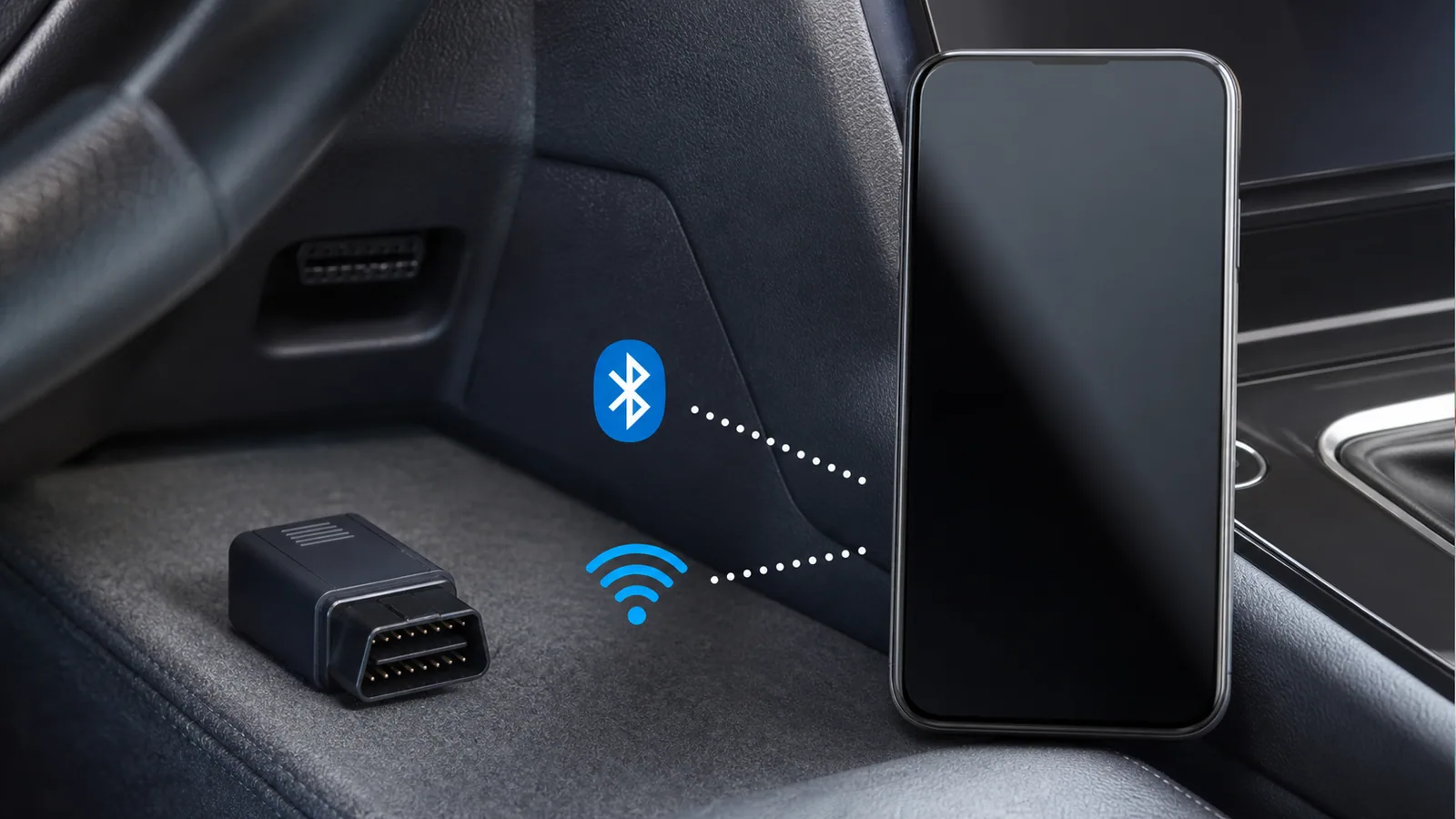
Even if the phone adapter looks visually the same, Bluetooth Classic, Bluetooth Low Energy, and Wi-Fi models use different pairing flows.

ConnectionGeneral usage patternInitial Check
Bluetooth ClassicPairing from phone settings and selection within the appAndroid and product's support list
Bluetooth Low EnergyConnection directly within the app for most productsiOS/Android and app support
Wi-FiConnecting to the adapter's wireless network and selecting Wi-Fi in the appInternet access and network switching
Brand-specific VCIManufacturer's own app or tablet flowModel, serial number, and license
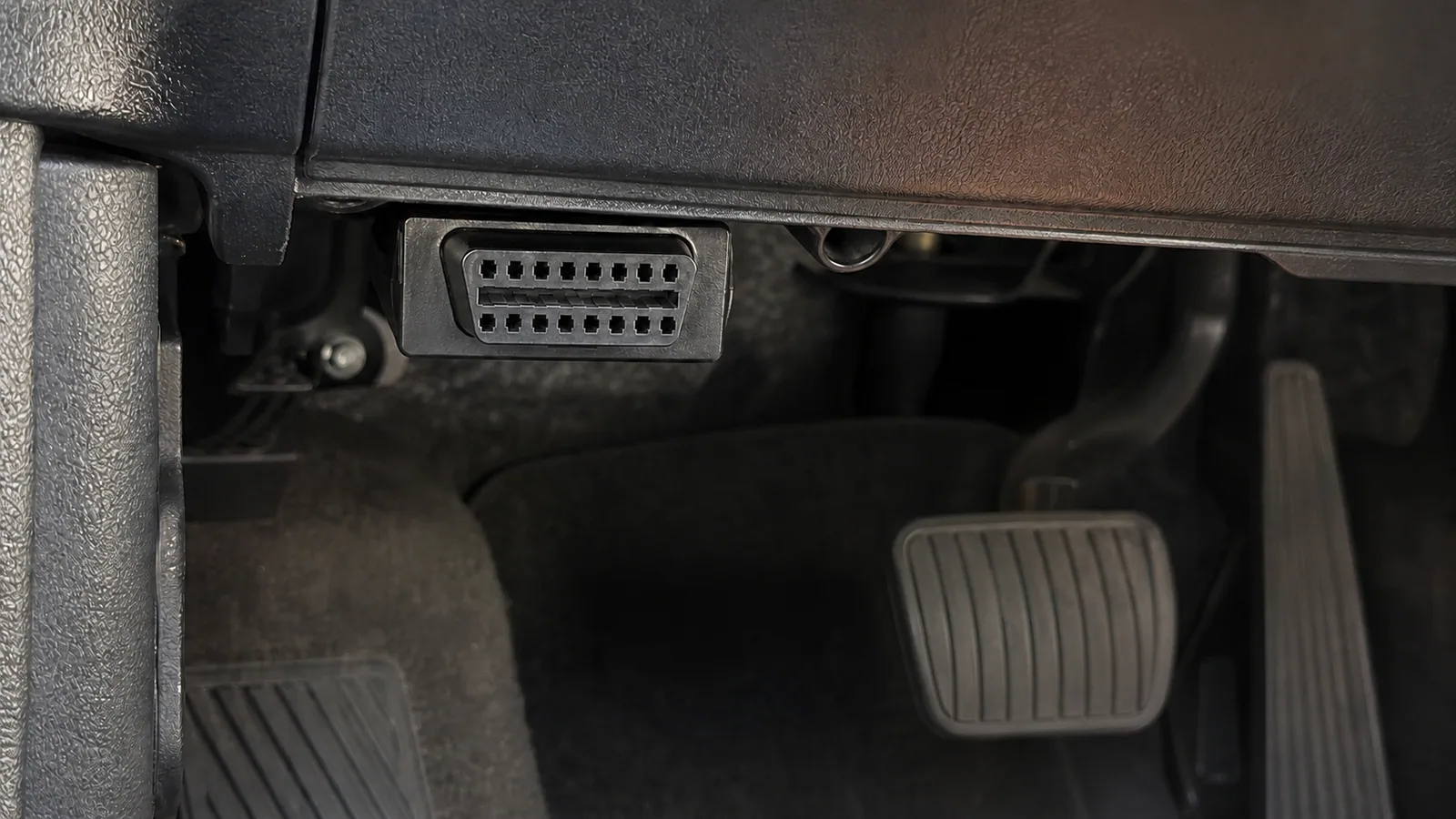
16-pin OBD2 socket and adapter checked before phone connection

Decision guide

Check adapter, phone, and vehicle information before connecting

The first step is to verify which operating system and connection standard the adapter supports. The text "Bluetooth OBD2" on the product box does not mean it will work the same way with Android and iPhone. The model name, hardware version, official app, connection type, and supported phone version should be evaluated in the same check.

Find out from the product's official technical information whether the adapter uses Bluetooth Classic, Bluetooth Low Energy, or Wi-Fi. Some models may require a classic Bluetooth connection on the Android side and a BLE or Wi-Fi version on the iPhone side. Two housings that look similar may use different electronic and software channels. Instead of inferring from the listing title, rely on the model code and manufacturer's instructions.

On the phone side, check the operating system version, Bluetooth or Wi-Fi access, the official developer in the app store, and the permissions requested by the app. An old APK or an app that hasn't been updated in years may not be able to connect with new phone security rules. Completing the app installation does not mean the adapter license, vehicle coverage, or all gauges will work.

The vehicle must be parked in a safe, ventilated, and level location. The OBD socket is usually located on the driver's side, below the dashboard, but its position varies from vehicle to vehicle. Do not force the socket cover or trim piece, and do not connect if the adapter's pins are bent. If the engine needs to be running during initial setup, do not use a closed garage.

  • Adapter model code
  • Android or iOS support
  • Bluetooth/BLE/Wi-Fi type
  • Official app and instructions

Connection steps applied within the vehicle to connect the OBD2 adapter to the phone

Decision guide

Common connection order: socket, ignition, app, and vehicle

Although brand-specific details vary, the controlled sequence is the same: park the vehicle, plug the adapter into the OBD2 socket in the correct orientation, select the ignition status as per the product instructions, enable the necessary connection on the phone, select the adapter within the official or compatible app, and finally establish the connection to the vehicle network.

If there is a power or status light when the adapter is plugged in, it should indicate the normal state as per the manufacturer's instructions. The absence of a light may indicate a problem with the socket's power supply, fuse, adapter, or contact. Forcing the socket, shorting different pins, or probing unknown points with a test pen is incorrect. If there is a physical connection issue, the process should be stopped.

The ignition position can vary depending on the device and the operation being performed. Some basic scans may start with the ignition on, engine off; for some connection issues, the manufacturer may recommend running the engine. Follow the adapter's own setup instructions instead of general internet instructions. If the battery is weak, do not perform long scans or write operations.

When the app opens, first select the adapter type, then, if necessary, the vehicle profile and diagnostic network. Standard engine OBD2 connection is not the same as manufacturer-specific advanced networks. The automatic protocol and standard OBD2 option on the first attempt provides a simpler start if the product instructions also support it. An incorrect vehicle profile can lead to displayed values not matching actual usage.

User pairing OBD2 adapter via Bluetooth on Android phone

Decision guide

Bluetooth OBD2 connection on Android phone

On Android, classic Bluetooth adapters are often found and paired in the phone's Nearby Devices or Bluetooth menu; products using BLE may appear directly in the app's connection wizard. The exact flow depends on the adapter and app manufacturer's instructions.

First, turn on the phone's Bluetooth feature and evaluate the Nearby Devices permission requested by the app. On newer Android versions, scan and connection permissions require user consent. On older apps, an additional request related to location services may appear; this is because of how the Bluetooth scanning model worked on older Android versions. Nevertheless, do not grant unnecessary permissions without reading the app's privacy statement.

If the adapter uses classic Bluetooth, the device name will appear in the phone settings. If there are multiple devices with similar names, select the correct one using the serial number or product instructions. If a PIN is requested, use only the value from the official guide; do not try codes randomly shared on the internet. After pairing is complete, select Bluetooth and the paired adapter as the connection type in the app.

BLE adapters do not always appear permanently in the phone's general paired devices list. The connection is made using the "set up new adapter," "select device," or similar flow within the app. Although multiple Bluetooth connections may technically be possible even if the phone is connected to another audio device, if the OBD app is experiencing issues, temporarily disabling other active connections can facilitate diagnosis.

After connecting, the app sees the adapter, and then the adapter communicates with the vehicle's ECU. It is important to distinguish these two stages. If you get a "connected to adapter" message but cannot see vehicle data, the Bluetooth pairing may be complete, but there might still be an issue with the ignition, protocol, vehicle support, or OBD socket.

  • Nearby Devices permission
  • Correct adapter name
  • Official PIN information
  • Vehicle connection from within the app
User reviewing OBD2 adapter options with BLE and Wi-Fi connection on iPhone

Decision guide

Bluetooth, BLE, or Wi-Fi OBD2 connection on iPhone

Adapter's iOS support must be clearly stated for iPhone connection. Some products work via BLE within the app, some via Wi-Fi network, and manufacturer-approved models work with their own connection wizard. It should not be assumed that every classic Bluetooth adapter that works on Android will work the same way on iPhone.

For adapters using BLE, open the app and follow the manufacturer's new device setup steps. If Bluetooth access is requested by the app and not granted, scanning may not be possible. Even if the adapter does not appear in the phone's general Bluetooth list, it may be found through scanning within the app. Whether this behavior is normal should be verified from the product manual.

For Wi-Fi adapters, select the wireless network created by the adapter from the phone's Settings section. Since this network does not provide internet access, the iPhone may display a warning like "no internet connection." The user should remain connected to the adapter's network, then select Wi-Fi as the connection type in the OBD app. If mobile data or automatic network switching causes the app to disconnect from the adapter's network, it can be temporarily adjusted.

iOS compatibility is not just about establishing a connection. The standards and manufacturer-specific data the app can read from the vehicle, paid add-ons, license, and supported adapter list should also be examined. The presence of an app in the App Store does not mean your random adapter is supported. Check the model list on the app developer's official support page.

If the phone sees the adapter but the app cannot connect, check Bluetooth permission, local network permission, the selected connection type, and whether another OBD app is open. Many adapters can only maintain one app or one phone connection at a time. Completely closing other background apps and trying again helps distinguish between permission issues and simultaneous connection conflicts.

User checking permissions and developer when choosing a secure OBD2 app on the phone

Decision guide

How to choose an OBD2 app?

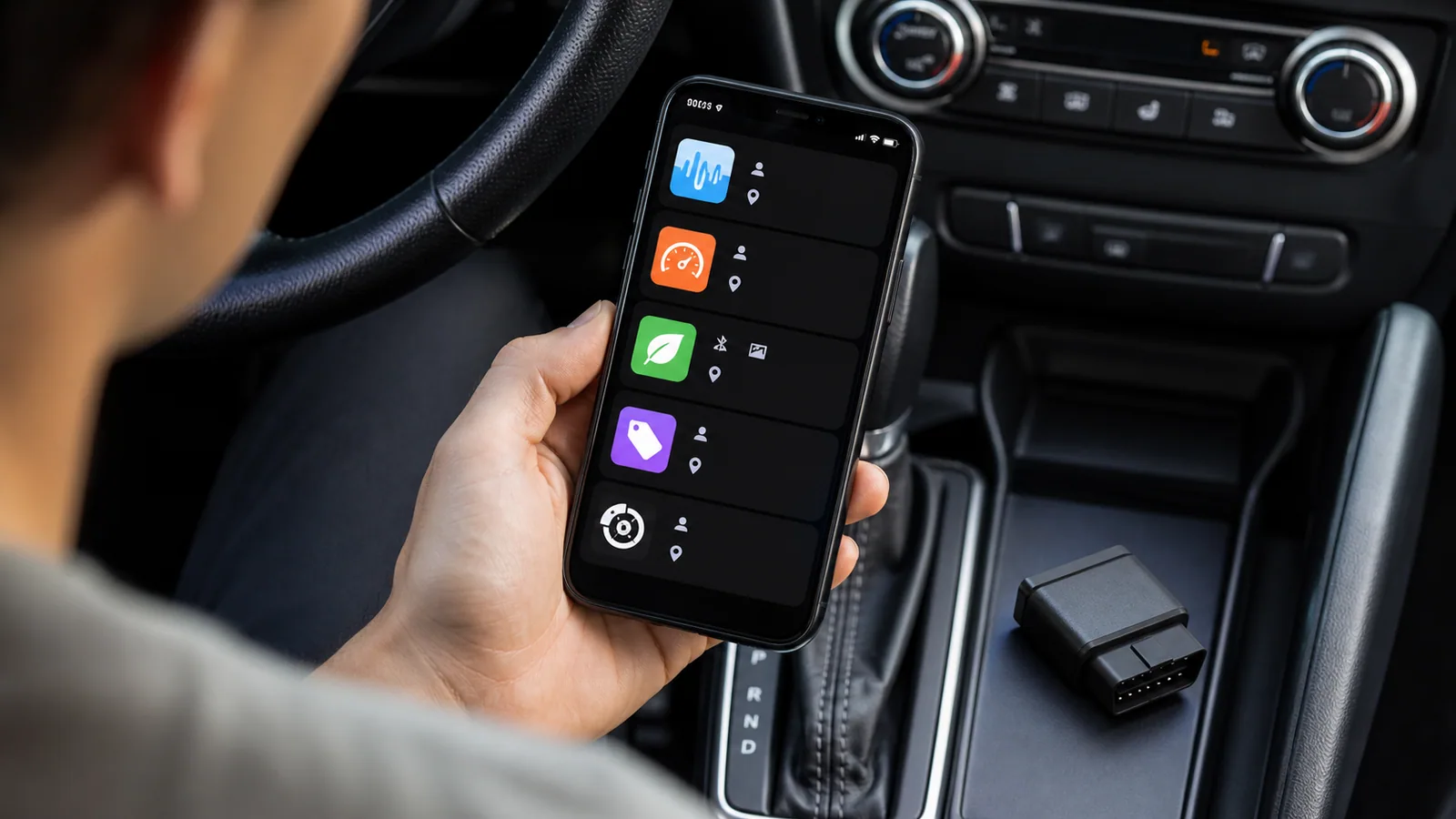
App selection is as important as the adapter. The safest start is the official app and support list recommended by the adapter manufacturer. If a third-party app is to be used, the developer's identity, update history, privacy policy, supported adapters, and in-app licensing structure should be examined.

A store's broad claims like "all vehicles" or "all faults" do not prove actual coverage. Distinguish between standard OBD2 engine data and manufacturer-specific ABS, airbag, transmission, and service functions. If the app offers manufacturer packages, check which model years and modules they cover, and whether they require additional fees or subscriptions.

While a Turkish menu provides ease of use, the accuracy of the technical translation is more important. If the DTC status, unit, sensor name, and service procedure are poorly translated, the user may make incorrect decisions. The original description of the code, the unit of measurement, and the vehicle manufacturer's service documentation should be compared when necessary. Just being in Turkish does not make an app professional.

The permissions requested by the app should be compatible with its function. Bluetooth or nearby device permission may be expected for connection. Location, photo, or storage access may be related to maps, report export, or older Android behavior; however, the user should see the reason for each permission. For unrelated requests like contact, people, or message access, check the reason for permission before using the app.

A free app may be sufficient to test basic connectivity; advanced gauges, logging, manufacturer packages, and reporting may be paid. The word "free" does not legitimize the use of unlicensed APKs. Files from outside official stores and developers pose security risks to your account, device, and vehicle data.

Technician checking OBD2 connection where no vehicle data is coming while the phone is connected to the adapter

Decision guide

Phone connects to adapter but no vehicle data is coming

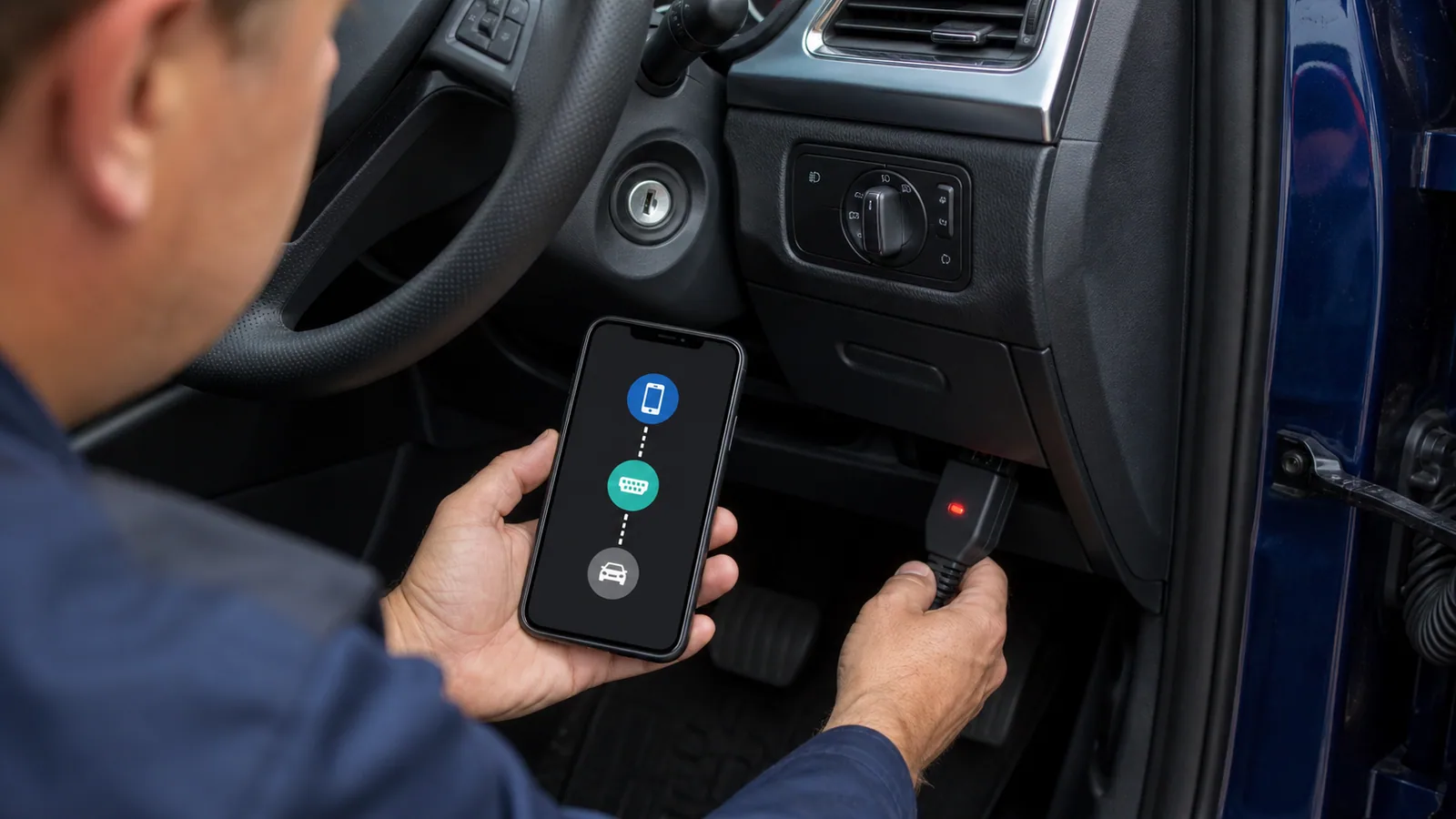
In this case, the problem often arises from confusing the two connection layers. The phone can communicate with the adapter; however, the adapter may not be able to reach the vehicle's ECU. Ignition status, socket power supply, app protocol, vehicle compatibility, and adapter hardware should be checked separately.

First, read the status message in the app. "Adapter not found" indicates the phone-adapter layer; "No ECU connection" or similar messages indicate the vehicle layer. Low-risk first steps include removing and checking the adapter pins, reinserting it, turning Bluetooth or Wi-Fi off and on, and restarting the app.

Some vehicles may not wake up the ECU if the ignition is off. According to the product's official instructions, turn the ignition on or run the engine in a safe open area. If the protocol was manually selected in the app, switching back to automatic selection may be helpful. A setting that forces the last connected protocol can prevent communication with a different vehicle.

If there is no power at the OBD socket, the relevant fuse or vehicle-side electrical issue may be found. In this case, instead of forcing the adapter, vehicle schematics and expert service are required. While it working on another vehicle may indicate the adapter is fundamentally sound, relying on the support list is better than randomly trying it on every vehicle.

Cloned or low-quality adapters may behave differently in terms of command set, timing, electrical protection, and firmware. The version label on the housing alone does not prove the internal hardware. If there are constant disconnections, overheating, loose connectors, or unintelligible data, it is better to stop use and switch to a reliable product and support channel.

  • Phone-adapter connection
  • Adapter-vehicle connection
  • Ignition and protocol
  • Socket power and hardware
User comparing supported and non-displaying gauges in the OBD2 app

Decision guide

Connecting but some gauges are not working

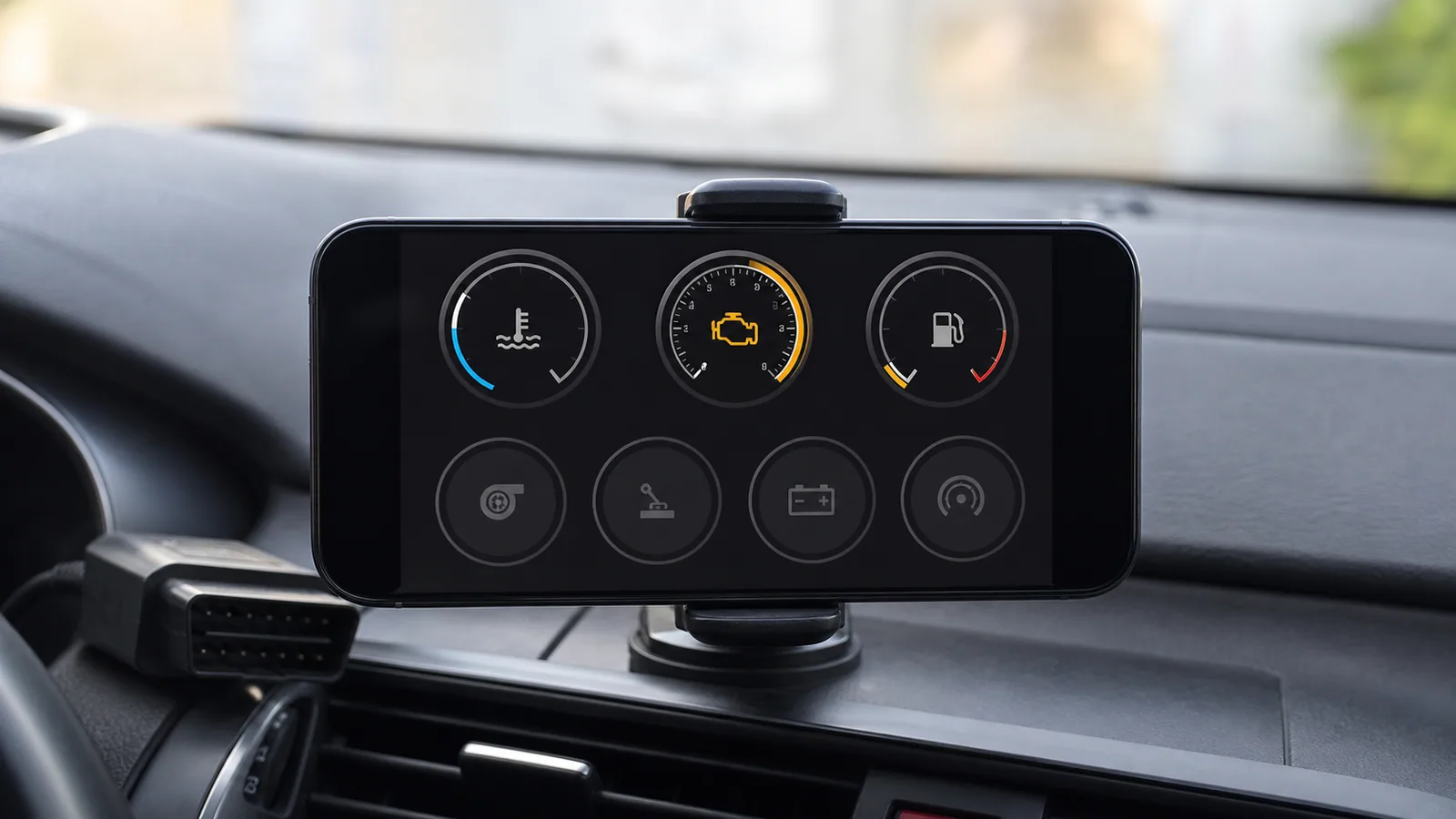
The presence of a gauge in the app does not mean the vehicle reports that data. Empty, zero, or meaningless values may be seen due to unsupported PIDs, incorrect vehicle profile, incorrect units, slow data refresh, or parameters only available in manufacturer packages.

First, start with a few parameters that are standard and supported by the vehicle. Data like engine RPM, vehicle speed, or coolant temperature can help verify the connection if the vehicle and conditions are suitable. If the app offers an unsupported PID scan, run it while the vehicle is connected. The long list of gauges visible without connection is not the actual support list.

Entering engine displacement, fuel type, weight, or tank information into the vehicle profile is necessary for some calculated gauges. If these values are incorrect, results like fuel economy and power estimates will also be incorrect. The data read directly from the ECU and the estimated values calculated by the app should be distinguished.

Requesting too many PIDs simultaneously can slow down data refresh on low-speed adapters. Selecting a few related parameters for diagnosis, adjusting graph and logging times provides more readable results. If high-speed, multi-channel logging is required for service level, a diagnostic device offering higher data performance and reporting is preferred over a phone adapter.

Service technician recording OBD2 fault codes before clearing them

Decision guide

Correct order for reading and clearing codes

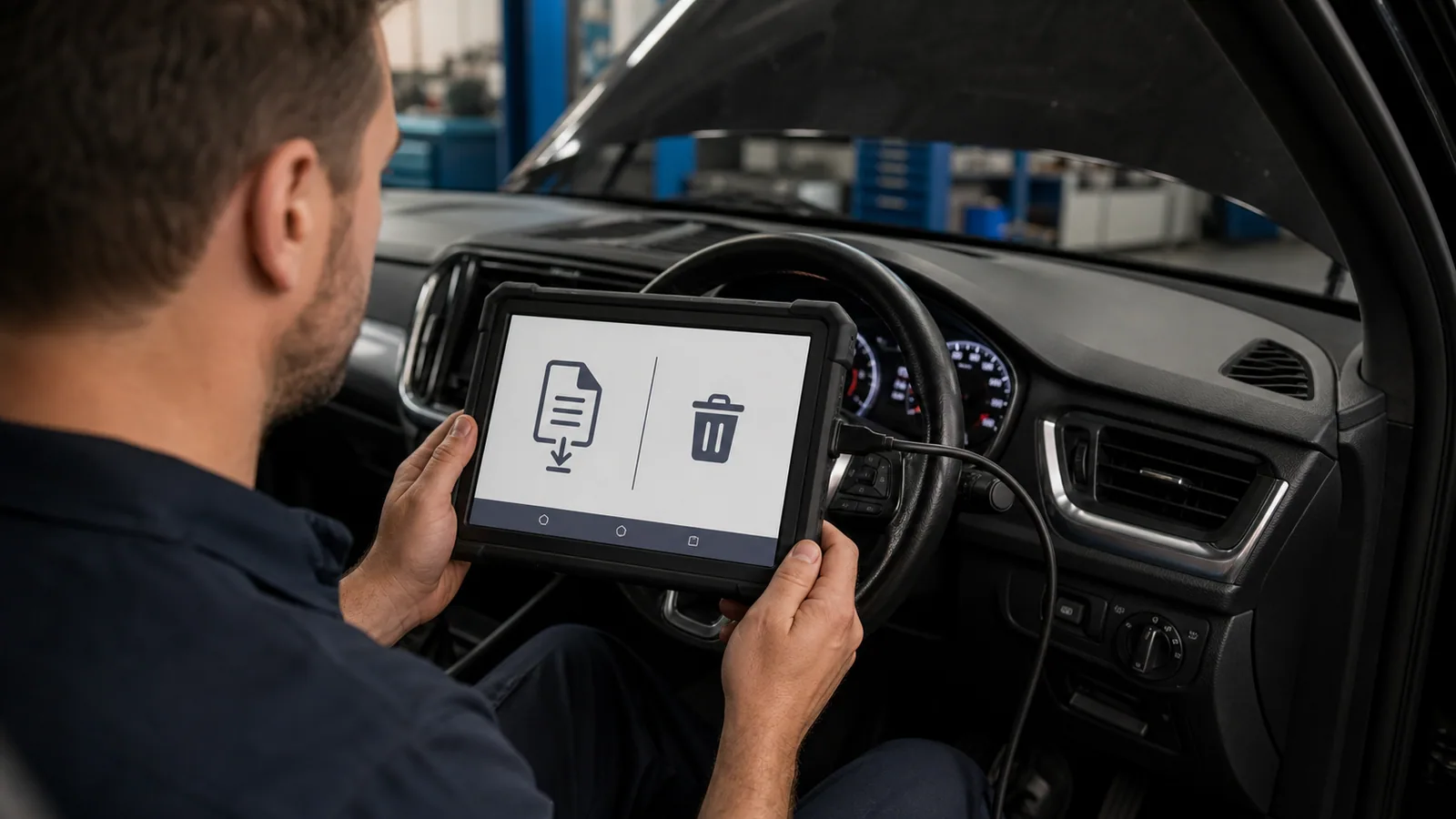
Do not press the "clear codes" button immediately upon establishing a connection. First, record all visible codes, their statuses, ECU, freeze frame, and vehicle symptoms. Then, evaluate possible causes with reliable technical information and perform necessary physical measurements.

The code description may not indicate that the part is faulty. A sensor circuit code may be affected by wiring, socket, power supply, ground, air leak, or other operating conditions. The phone screen provides a starting point that shortens diagnosis time; it does not provide the repair result on its own. Professional devices and service procedures are required for critical safety systems.

Clearing codes can reset some logs and emission readiness status. Clearing codes to turn off the light immediately before a vehicle inspection does not resolve the underlying issue. After the fault is rectified, record the data, clear the code, perform a controlled operation or test drive, and rescan the vehicle. If the problem persists, the code may return.

The phone should not be used handheld during a test drive. If data logging is required, the app and mount should be prepared before the drive; if possible, a second person should monitor, or the log should be reviewed afterward. Write operations such as active testing, adaptation, coding, and programming carry different risks than basic OBD2 reading and should not be attempted with random mobile apps.

Technician checking safe usage of vehicle battery and OBD2 adapter

Decision guide

Connection security, battery, and leaving the adapter in the vehicle

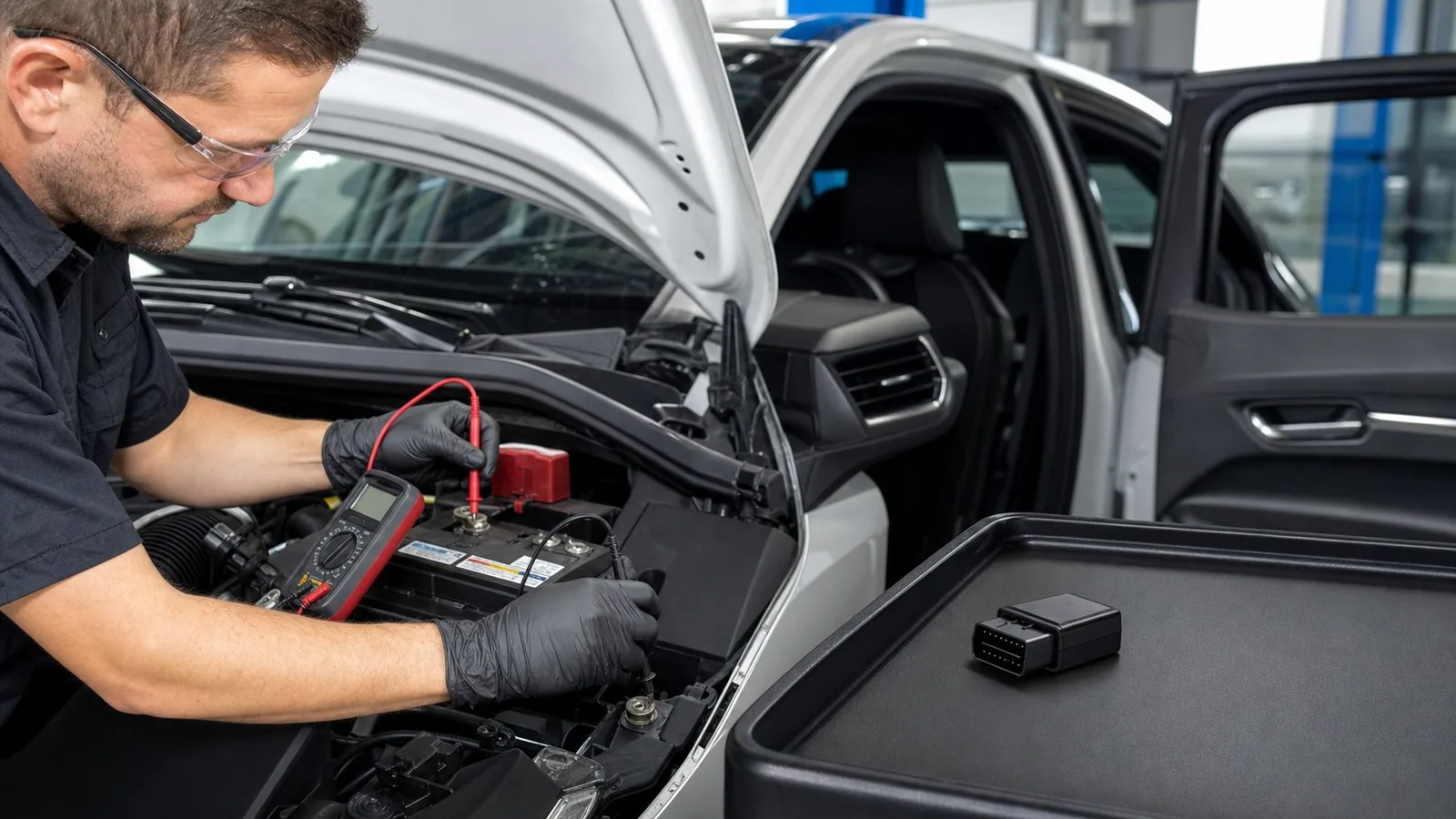
OBD connection accesses the vehicle network. Using a reliable adapter and app, protecting account and license information, monitoring battery status during operation, and removing the adapter appropriately for its intended use are part of safe setup.

Leaving an adapter not designed for long-term data logging in the socket continuously can pose a risk of current consumption or unauthorized connection. Some high-quality products may have a sleep mode; this feature should be verified from the model's official documentation. If the vehicle will be parked for a long time and the manufacturer does not explicitly support continuous use, it is more controlled to remove the adapter.

If a firmware update is available, only the manufacturer's app and instructions should be used. The phone connection, adapter power, or vehicle voltage should not be interrupted during the update. Third-party firmware files or software from a different housing may render the adapter unusable.

Vehicle Identification Number, location, driving route, and diagnostic reports may contain personal or commercial data. The app's cloud account, export, and sharing settings should be checked. A service operating on a customer's vehicle should not share the report for purposes other than authorized use and should not leave the device account open on a shared, unsecured phone.

  • Reliable app and adapter
  • Battery and connection stability
  • Firmware source
  • Vehicle and customer data
Comparison of phone OBD2 adapters with Bluetooth, BLE, and Wi-Fi connections

Decision guide

Choosing the right phone adapter

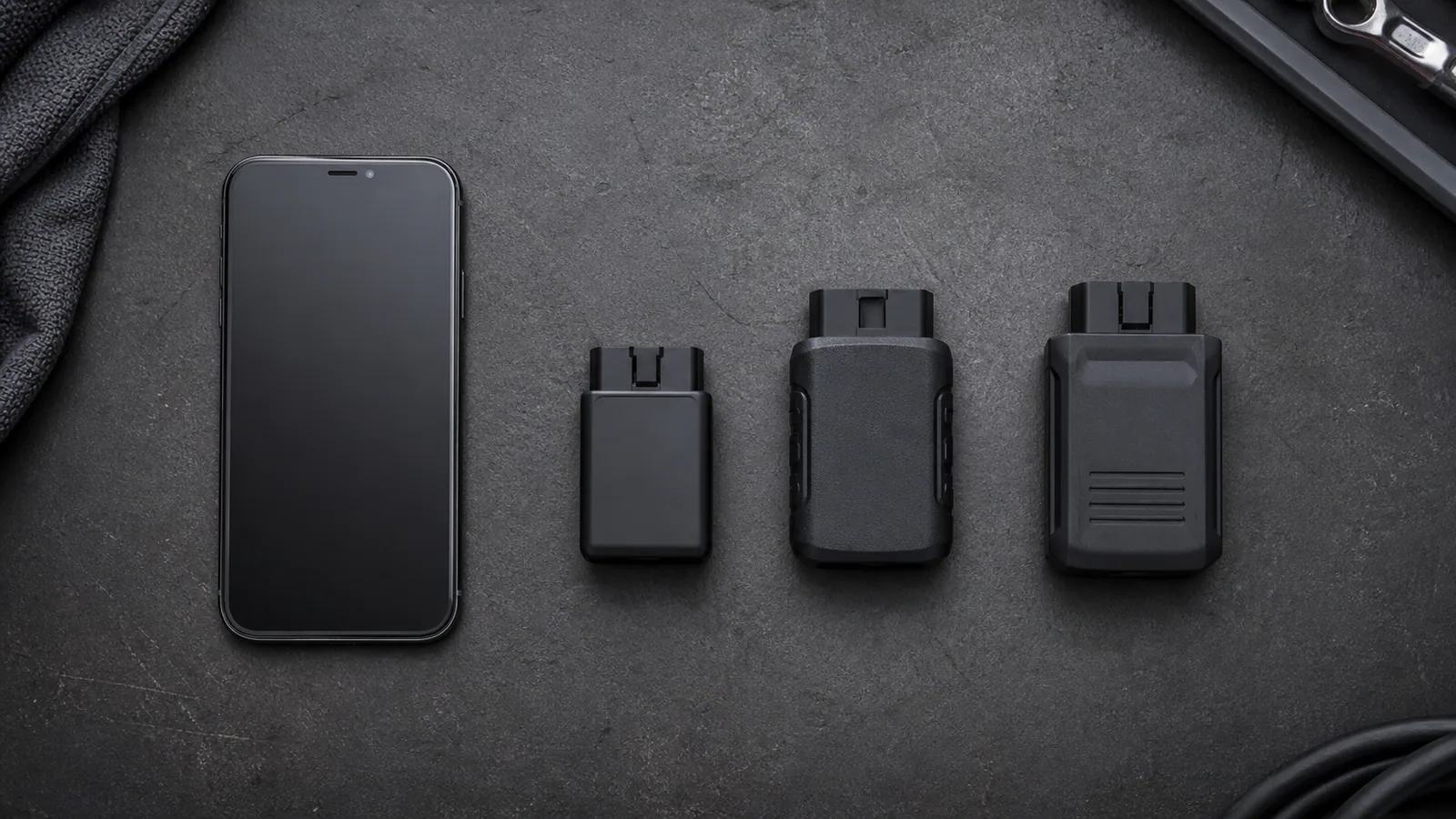
When making a purchase decision, determine the task to be performed first, not the phone model. A compatible mobile adapter may be sufficient for basic engine codes and a few live data points. If ABS, airbag, service functions, active testing, or daily workshop reports are required, a different device class should be considered.

When selecting an adapter, compare the supported operating system, connection standard, official app, firmware updates, protocol coverage, and technical support. The term "Turkish" may refer to the menu language; vehicle coverage and translation accuracy should be checked separately. The term "free app" may not mean that manufacturer packages or advanced functions are free.

Ease of connection with a phone is not the same as professional diagnostic coverage. Small adapters may be practical for standard OBD2 engine data; a service tablet offers a different workflow with multi-system scanning, reporting, VCI connection, and vehicle-specific functions. Comparing these two classes solely by price is not appropriate.

When making a selection at Otobiltek, the vehicle make, model, year, engine, system to be read, phone to be used, and expected operation should be listed. This information will indicate the appropriate device among adapters, handheld readers, or service tablets. Current pricing, stock, package, and license information will be directly on the product page.

Before purchasing, search for the adapter's full model name and support information in the app store, but do not rely solely on user reviews. The manufacturer's compatible device list, latest firmware date, warranty, and technical support channel provide a more solid basis. If the same product name has different hardware revisions, the correct manual should be matched with the box or serial information.

Instead of choosing an adapter based solely on the phone brand, prepare a test list: does it connect, does it read standard engine codes, does it refresh supported live data stably, and can reports be generated? If this basic flow is verified on a controlled vehicle within the return and support period, subsequent incompatibility issues will be identified earlier.

Frequently Asked Questions

Most frequently asked questions by customers

Why is the OBD2 device not showing on the phone?

The adapter may not be receiving power, the wrong connection type may have been selected, app permissions may be off, or the BLE device may only appear within the app instead of the general Bluetooth list. The model's official setup flow should be checked.

Does an OBD2 device that works on Android also work on iPhone?

Not always. The adapter's iOS support, BLE or Wi-Fi connection, and app compatibility must be clearly stated. Android and iPhone versions with similar housings may use different hardware.

The phone is connected to the adapter, but there is no ECU connection. What does this mean?

A phone-adapter connection has been established, but the adapter may not have been able to reach the vehicle's ECU. Ignition status, OBD socket, protocol selection, vehicle support, and adapter hardware should be checked separately.

Can the OBD2 app be used for free?

Some apps may offer basic code and live data functions for free. A fee may be required for manufacturer-specific packages, registration, gauges, or reports. Only official stores and licensed channels should be used.

Why is location permission requested for the OBD2 device?

On older Android versions, Bluetooth scanning may be associated with location permission; some apps may also use maps or driving logs. The reason for the permission should be checked in the app's privacy statement.

Can an OBD2 adapter damage the vehicle?

A reliable adapter that is robust, suitable, and used only for reading is normally designed for service connection purposes. Bent pins, low-quality hardware, short circuits, improper write operations, or connection interruptions can pose a risk.

Can I leave the OBD2 device in the vehicle permanently?

It can only be left in the vehicle if the manufacturer explicitly states sleep mode and continuous use suitability. Otherwise, it is more controlled to remove it after the operation due to current consumption and connection security.

Related pages

Pages related to this topic

Technical Resources

Sources for technical information

Technical information checked with sources on October 10, 2026.

Related products

Related products

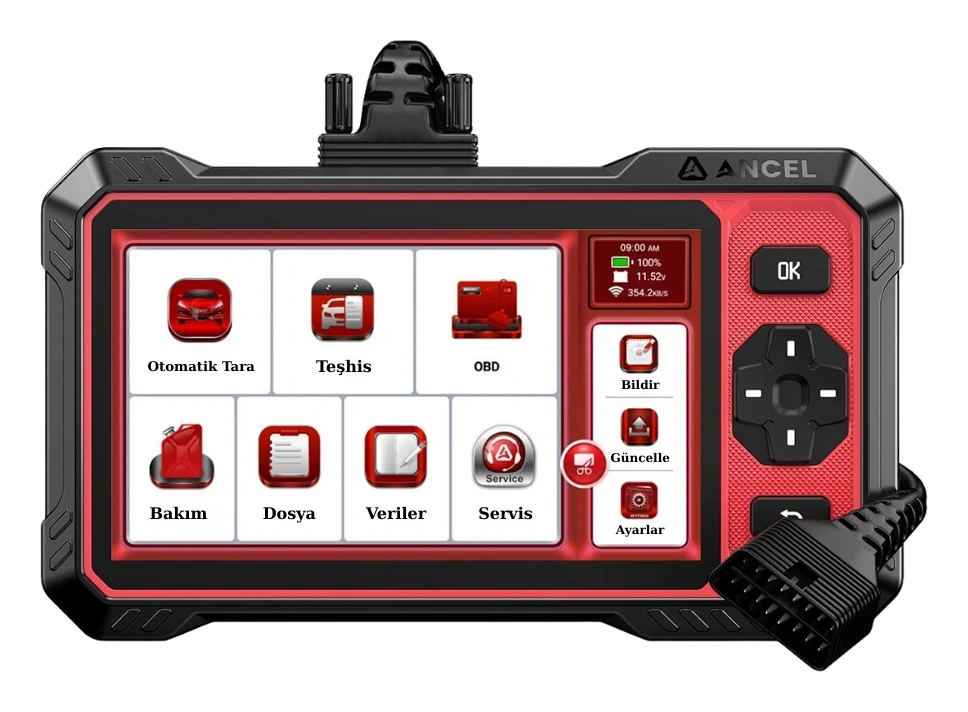
Ancel DS410 Lite product image

Ancel DS410 Lite

Ancel DS410 Lite is a wired service device with full system diagnostics, active testing, and CAN FD support. The device includes lifetime free updates.

  • Full system diagnostics
  • Bi-directional active test
  • CAN FD communication
≈ $30314,990 TL charged · VAT included · import duties excludedIn stock
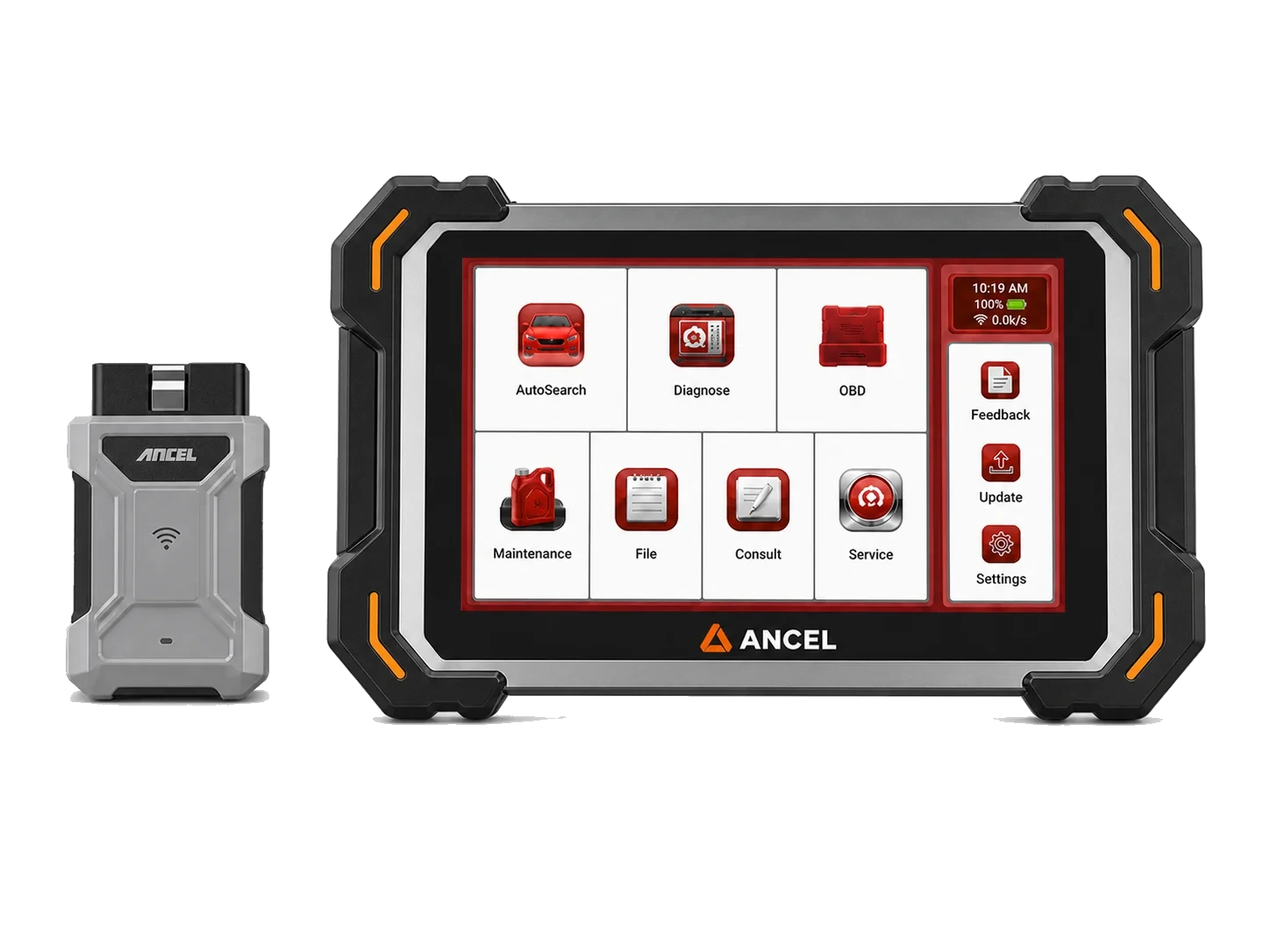
Ancel DS500BT product image

Ancel DS500BT

Tablet device with Bluetooth VCI connection for fault codes, live data, and supported maintenance operations.

  • BT connection
  • Service functions
  • Live data
≈ $50624,990 TL charged · VAT included · import duties excludedIn stock
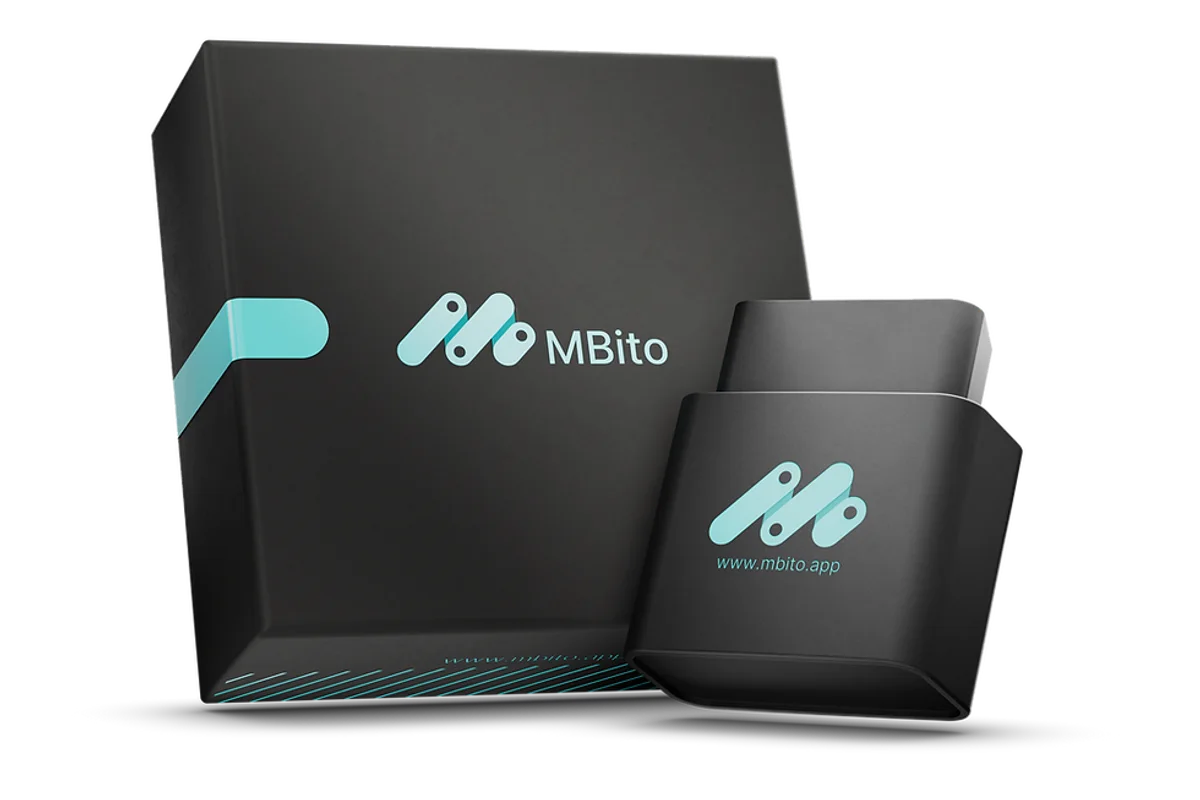
MBito OBD product image
MBito

MBito OBD

MBito OBD is an OBD adapter used for personalization, coding, and fault logging operations via a mobile application on supported Mercedes vehicles.

  • Explore hidden features
  • Connect with the app
  • Usage for Mercedes
≈ $1728,500 TL charged · VAT included · import duties excludedIn stock
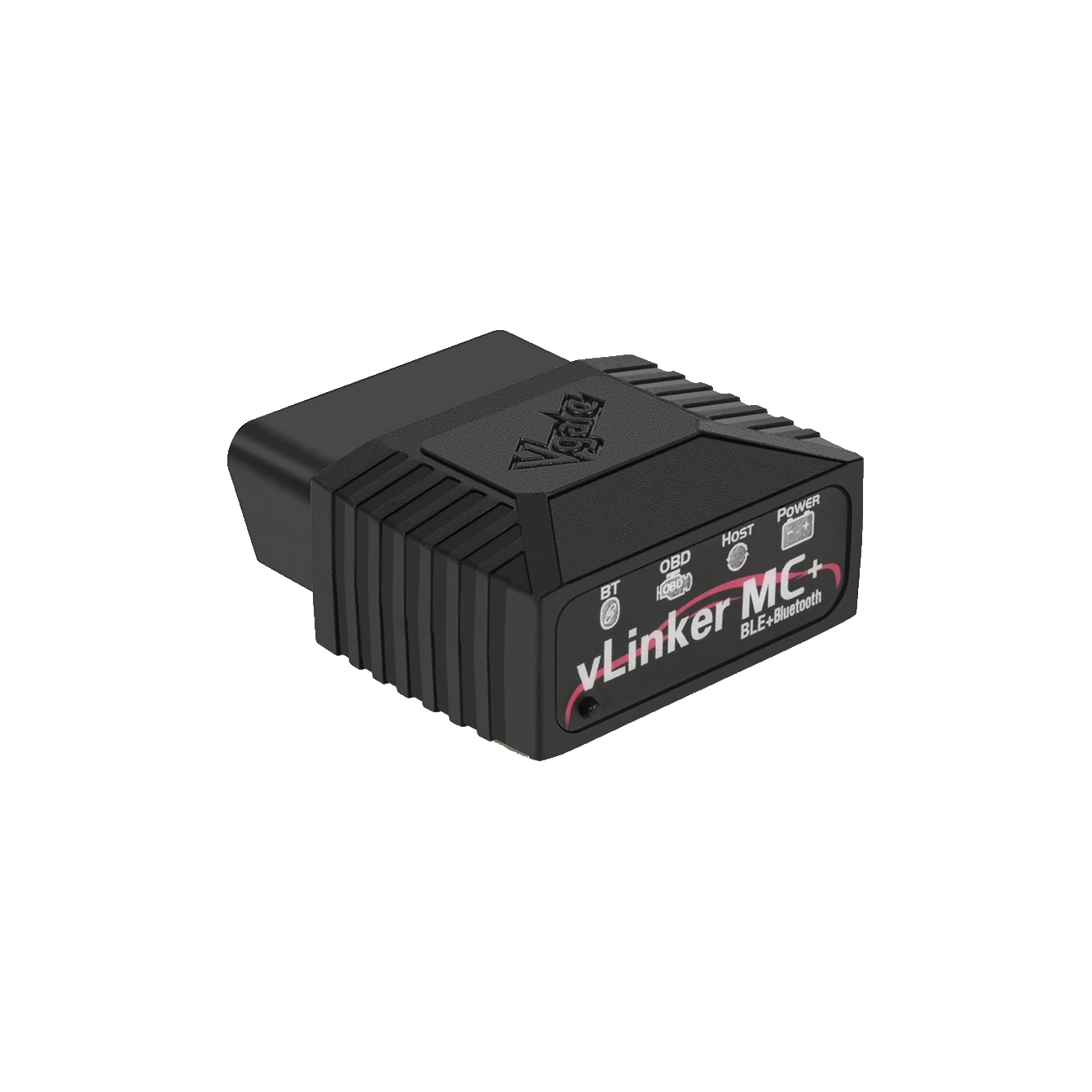
Vgate vLinker MC+ Bluetooth OBD2 Diagnostic Tool product image
Vgate

Vgate vLinker MC+ Bluetooth OBD2 Diagnostic Tool

Vgate vLinker MC+ is a Bluetooth OBD2 adapter used with compatible applications on iOS, Android, and Windows devices; it can access brand-specific functions if supported by the application and vehicle, in addition to basic OBD-II diagnostics.

  • Read, clear engine fault codes, and view live data in compatible applications
  • Supported BMW operations as specified in the BimmerCode official adapter list
  • Access to Ford systems supported by compatible applications like FORScan
≈ $1216,000 TL charged · VAT included · import duties excludedIn stock