Opel MDI 2 device not found: USB, driver, and MDI Manager check
The warning 'MDI 2 not found' does not indicate a single fault. Device power, USB cable, Windows driver, MDI Manager version, another application using the same VCI, and aftermarket board revision can all cause the same symptom. The safest method is to verify the connection chain from outside to inside without performing vehicle and firmware writing operations.
Change only one variable at each step; record the results with device lights and Windows view.
Indication
Initial Check
Next step
Operation to avoid
No light
Vehicle DLC supply and cable
Fuse/ground and other vehicle test
Firmware update
No Windows device sound
Direct USB and different cable
Different USB port
Using a USB hub
Unknown USB device
Device Manager
Official MDI Manager driver
Random driver package
MDI Manager sees it, GDS2 does not
VCI selection and open applications
Closing and re-selecting applications
Opening the device in two applications simultaneously
Windows sees it, no vehicle communication
DLC supply, ignition, and vehicle cable
Separating VIN/module scope and other vehicle tests
Randomly bridging pins
Serial number or version mismatch
Casing label and MDI Manager record
Requesting board/version procedure from the seller
Forcing official firmware installation
Does not turn on after update
Power and recovery conditions
Support appropriate for board revision
Writing firmware repeatedly
Decision guide
1. Record the device's power and status lights
The MDI 2 requires sufficient supply from the vehicle's diagnostic socket for vehicle communication. If the device is completely dark, check the DLC supply, relevant fuse, OBD cable seating, and ground before software. If possible, try the same cable and device on another known working vehicle for power-on only. Record the color and blinking pattern of the lights with a photo or short video; because 'device not turning on' and 'Windows not seeing it' are two different fault areas. If external power is to be supplied, only the voltage and connection method defined in the manual should be used. Connecting random adapters to the ports poses a risk of reverse polarity or overvoltage.
If there is physical damage, bent pins, or a loose connection in the vehicle's OBD socket, do not force the device. Repair the socket and cable first.
Powering the device with power support before programming is not the same issue. Programming requires a separate regulated vehicle power supply and manufacturer procedure.
DLC supply
OBD cable
Status lights
Comparison with a known working vehicle
Decision guide
2. Test the USB connection without using a hub
The GM user manual recommends connecting the device directly to the computer for USB connection; USB hubs and repeaters can make troubleshooting difficult. First, connect the provided cable to a physical port on the computer. Monitor Windows device sound, MDI lights, and Device Manager simultaneously. If there is no result, try another known working USB cable that can carry power and another port. Type-C docks, USB ports on monitors, and long extension cables should be excluded from the initial test. If the laptop is in battery saving mode, USB selective suspend may disconnect the connection; keep the computer connected to the mains and sleep mode off during testing.
If the device sound repeats when the cable is moved, there may be a physical contact issue with the socket or cable. Firmware operation should not be performed.
Moving to Ethernet or Wi-Fi settings without establishing USB visibility compounds two problems. First, local connection is proven with a single cable.
Direct computer port
Working data cable
Device Manager view
Sleep and USB power saving off
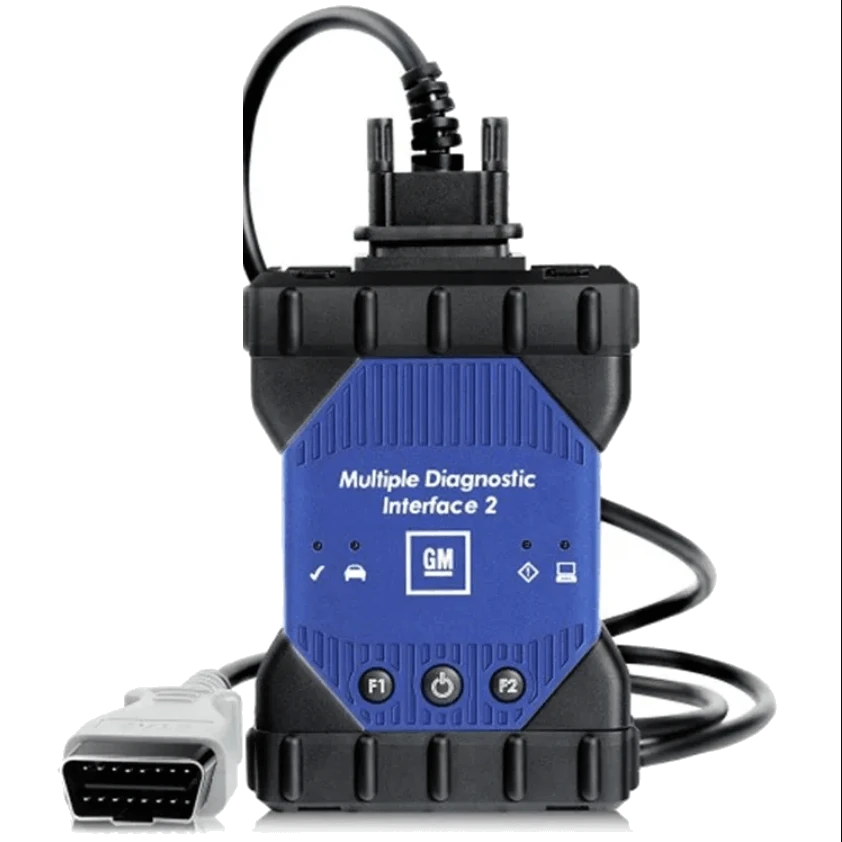
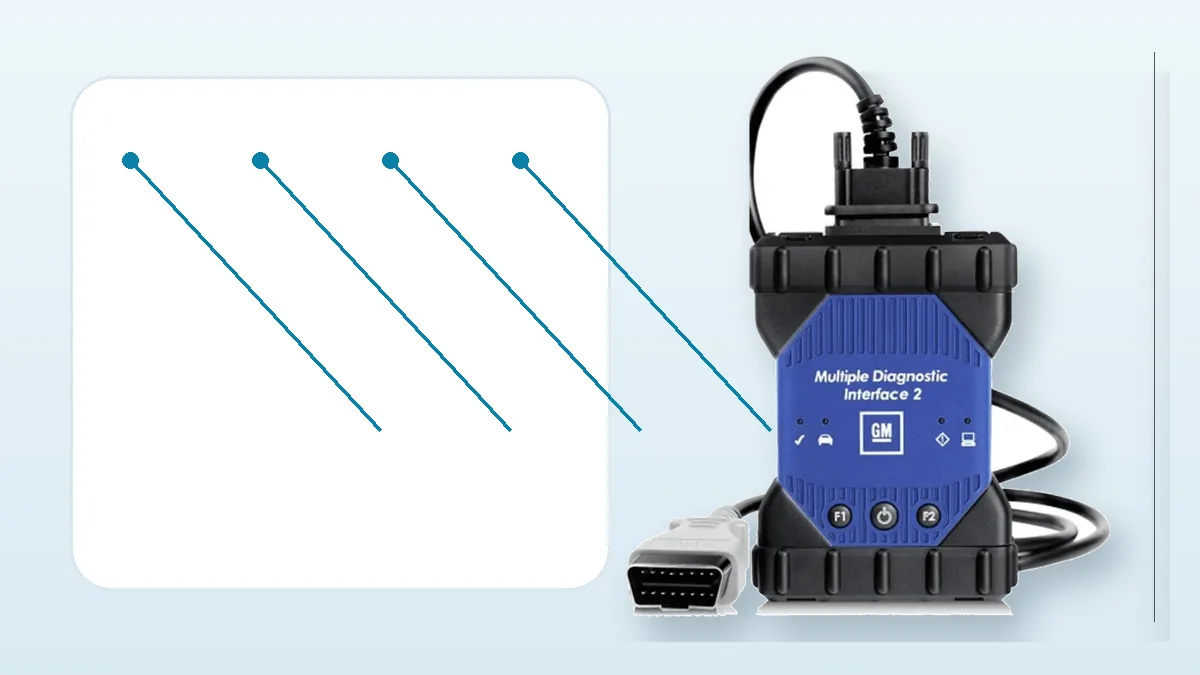
Visual guide for port and connection check of MDI 2 compatible device
Decision guide
3. Check Device Manager and MDI Manager driver
Windows may show the device as 'RNDIS', 'Ethernet Gadget', or an unknown USB device. In this case, instead of installing drivers from random internet archives, the MDI Manager package from Bosch's GM MDI/MDI 2 software page should be used as a basis. Installation is done with a local administrator account, and it should be checked whether the security software quarantines the file. After the driver installation is complete, disconnect and reconnect the cable, verify that the device appears without an error indicator, and open MDI Manager. The current GM infrastructure guide states that Techline applications require local administrator privileges and a supported Windows environment. Results obtained on an old virtual machine or a modified Windows image are not considered the same as a current local installation.
Official MDI Manager package
Local administrator privileges
Device error code check
Supported Windows environment
Decision guide
4. If MDI Manager sees it, but GDS2 or Tech2Win does not
If the serial number is visible in the MDI Manager list, but the interface does not appear in the diagnostic application, the software session should be investigated before the hardware. Close the MDI Manager device details screen, terminate any other GDS2, Tech2Win, SPS2, or J2534 applications running simultaneously, and re-open the VCI selection in the application. Community shares report that MDI Manager holding the device busy can cause a 'device not found' symptom in Techline applications; this is not an official guarantee but a repeated observation during troubleshooting. Then, check the compatibility of the application, MDI Manager, and firmware versions.
The absence of the vehicle package in GDS2 or the expiration of the subscription should not be interpreted as a VCI fault.
Opening the same interface in two applications simultaneously can cause a connection lock. Closing all relevant processes before restarting the computer is a more revealing test.
GDS2 is a diagnostic application; SPS2 is required for ECU programming. Seeking functionality in the wrong application can appear as a connection problem.
Close open VCI sessions
Re-select the correct interface
Separate subscription and vehicle package
Decision guide
5. If Windows sees the device but cannot communicate with the vehicle
Check version matching
If MDI Manager sees the device without issues, but the VIN or control unit cannot be read, separate the computer side from the vehicle side. Check that the ignition is in the position specified in the vehicle procedure, that the OBD/DLC cable is fully seated at both ends, and that the VCI is receiving power from the vehicle. A trained technician can measure the supply and ground points of the diagnostic socket according to the vehicle schematic; bridging pins for testing or applying power with an unknown adapter can damage the control unit. Communication in another vehicle indicates an issue with the fuse, socket, network, or module side of the vehicle being examined; inability to communicate with any vehicle makes the cable, VCI protocol, or hardware revision more likely. If only one module is inaccessible, check the vehicle's network topology, module power supply, and selected vehicle definition before assuming the entire VCI is faulty.
Selecting the wrong VCI, wrong vehicle package, or wrong model year within Tech2Win or GDS2 can cause a 'no communication' symptom. If automatic VIN reading fails, verify the scope with the VIN instead of randomly selecting a vehicle.
USB connection functionality does not solely prove that the OBD/DLC cable or the vehicle protocol being examined is working. Test the computer, VCI, and vehicle layers separately.
Ignition and DLC supply
OBD/DLC cable seating
Correct vehicle and VCI selection
Decision guide
6. Match the serial number, hardware revision, and firmware identity
Comparison with another vehicle or module
The presence of a serial number in MDI Manager does not prove the device is an original Bosch/GM product or that it carries the same board as the external label. For aftermarket devices, the casing label, the serial number reported by MDI Manager and firmware, the seller's delivery document, and if possible, the board revision should be kept together for the same work order. In workshops where multiple devices are used, assigning a physical label to each VCI reduces the risk of updating the wrong device or selecting the wrong interface. If the serial number changes unexpectedly, if multiple devices show the same ID, or if the firmware information does not match the delivery document, programming should not be performed. This inconsistency does not solely confirm the cause of the fault; however, it is sufficient warning not to proceed with updates without obtaining support and recovery procedures.
Take photos of the casing label and MDI Manager information screen together upon receipt; this creates a comparison point for later version changes.
Original product verification is done not only by the external casing, serial number, or software screen, but also by authorized supply and manufacturer records.
Record casing and software identity together
Label each VCI physically
Do not program with inconsistent identity
Decision guide
7. Separate Ethernet and Wi-Fi issues after USB
Obtain seller-specific version procedure
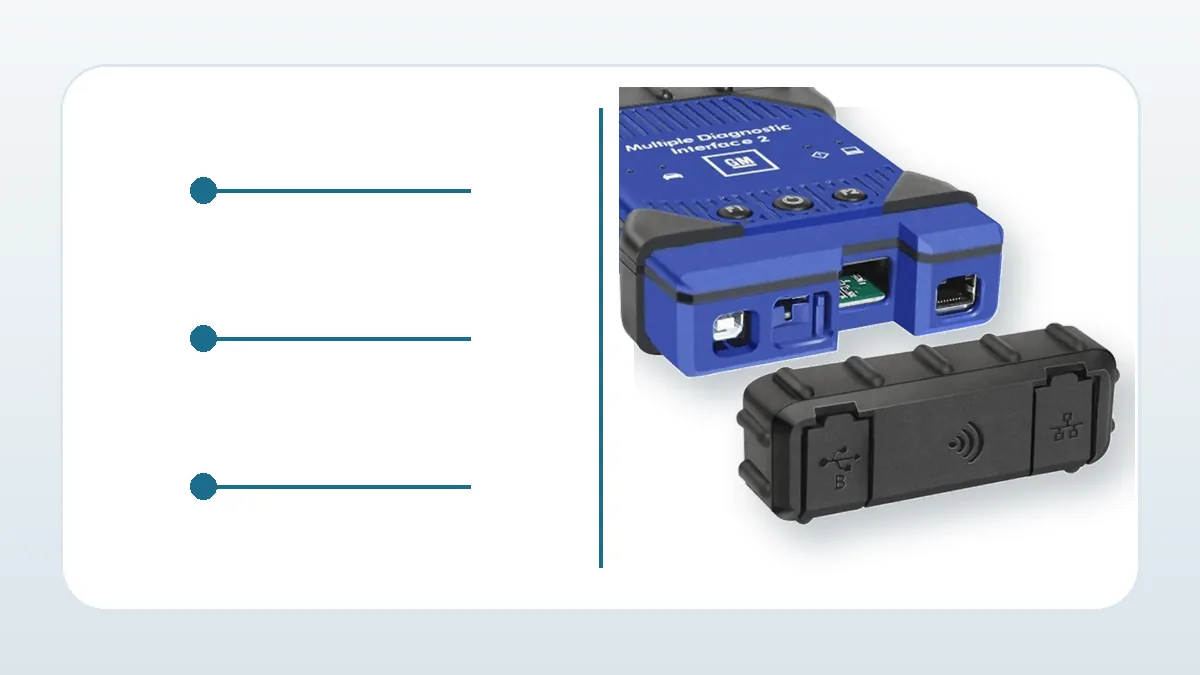
Once the device is visible via USB, Ethernet or wireless connection can be established separately. The original MDI 2 manual defines wired network and WLAN configuration via MDI Manager. However, in aftermarket casings, the wireless card may not be present at all, a different chip may be used, or it may be incompatible with the firmware. The cover on the body or the network socket is not a guarantee of functionality. First, check the presence of the relevant adapter in MDI Manager, then the computer IP configuration and firewall. Client isolation, corporate VLAN, or security policies on the service network may prevent device discovery. Even if a wireless connection is established, the most stable connection required by the manufacturer's procedure for programming should be preferred.
Working USB reference first
MDI Manager adapter view
IP and firewall
Decision guide
8. Make firmware update and recovery process the last option
Aftermarket WLAN card uncertainty
Firmware update is not the first step of normal connection testing. Although the original manual offers a recovery procedure, aftermarket devices may have different boards and memory layouts within the same external casing. Reports of cloned examples that do not turn on after official updates, lose USB connection, or get stuck in the recovery screen have been published on foreign user forums. These records are not individually verified laboratory tests; however, they show that the risk is real on devices with unknown board revisions. If the device works in MDI Manager, firmware should not be forced just because a newer version is available. If an update is necessary, the device identity, current version, power supply, working USB cable, and seller/manufacturer-specific recovery method must be recorded beforehand.
If the USB or vehicle power is interrupted during the update, the VCI boot software may be incomplete. Do not start without preparing laptop and vehicle power support.
Recovery process on a device with unknown serial number, board revision, and support source can lead to data loss or permanent failure. First, obtain a written procedure from the hardware provider.
Record the current working version
Verify board revision
Provide uninterrupted power and USB
Decision guide
9. Perform secure verification once the connection is fixed
Do not make recovery the first step
When the device is visible in MDI Manager, verification is not done directly by ECU writing. Vehicle power is checked, VIN is read in the appropriate diagnostic application, the control unit list is obtained, and the initial scan is recorded without deleting codes. Communication with only one module does not prove full vehicle coverage. If USB, Ethernet, and Wi-Fi are tested separately, the connection type and result are recorded for each session. If programming on the vehicle is targeted, after diagnostic success, SPS2 compatibility, subscription, calibration, and power procedures must also be verified. This way, 'device seen', 'communicated with vehicle', and 'programming is safe' results are not confused.
VIN and read-only scan first
Save the initial report
Record connection type
Frequently Asked Questions
Most frequently asked questions by customers
MDI 2 USB light is on but the computer doesn't see it; what should I do?
Try a different data cable and physical USB port without using a hub. Record the device name/error code in Device Manager and install only the official MDI Manager driver.
MDI Manager sees the device, but why doesn't GDS2 see it?
Another application might be holding the VCI session, the wrong interface might be selected, versions might be incompatible, or the subscription/vehicle package might be missing. Close all VCI applications and re-select the correct interface.
Windows and MDI Manager see the device, but why doesn't it communicate with the vehicle?
USB side functionality does not guarantee vehicle side functionality. Check the ignition position, DLC supply, OBD cable, correct vehicle/VCI selection, and target module scope separately; do not bridge pins for testing purposes.
Does the serial number in MDI Manager prove the device is original?
No. The serial number is only a point of registration. For originality, an authorized supply certificate and manufacturer record are required; for aftermarket devices, the casing label, software information, and board revision must be tracked together.
Is firmware update mandatory?
No. Updating without verifying the board revision on a working aftermarket device can pose unnecessary risks. Updates should only be performed when required by the software and a suitable recovery method is documented.
If Wi-Fi is not visible, is the device faulty?
Not necessarily. In aftermarket examples, a wireless card may not be present or a different firmware may be required. First, verify the basic functionality of the device via USB, then check the hardware and MDI Manager adapter view.
Does Recovery mode definitely recover the device?
No. The recovery flow in the original manual may not yield the same result with an aftermarket board. Operations should not be initiated without verifying the serial number, board revision, and correct firmware.
Aftermarket diagnostic tool in MDI 2 format, used for computer-based diagnosis in Opel, Vauxhall, and GM vehicles with appropriate official software and subscription; offered with a one-time initial setup guidance.
Diagnosis and live data in vehicles supported by GDS2
PC-based diagnosis in older GM vehicles within Tech2Win scope
Vehicle-PC communication in supported SPS2 operations