Evaluation Method
How was this guide prepared?
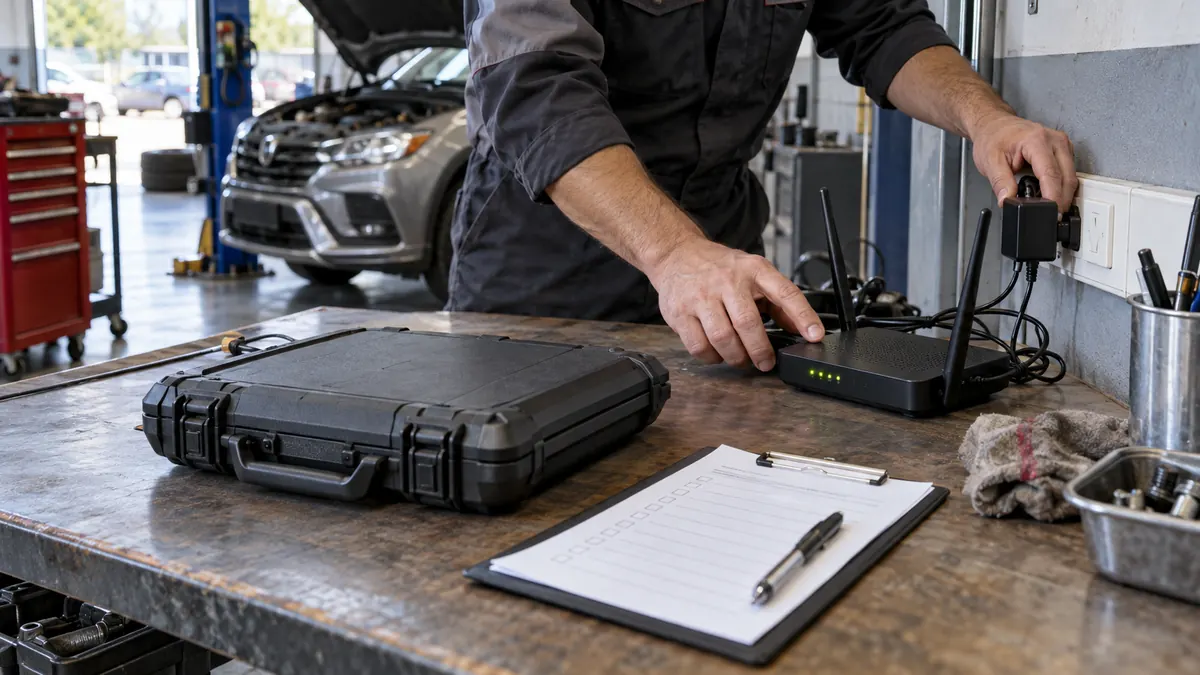
Visual representation of network and power check scene; not the actual Master update screen.
The Software Update, VCI settings, and FAQ sections of the THINKCAR Master user manual were reviewed. No tests were performed on the actual device.
- Addressing network, account, license, and storage as separate reasons
- Checking VCI serial number matching
- Avoiding reset recommendations that may lead to data loss
The guide will be re-verified if manufacturer software or menu names change.
Decision guide
First, determine what is displayed in the update menu
The manufacturer's manual lists updatable software and previously downloaded software separately within the Software Upgrade screen. The result 'No new version' is not the same as a download error. If the brand package is not listed, check the device model, account, and license scope. If the package appears but the download does not start, check the network and session status. If the download completes but the old version appears in the vehicle menu, check if the installation is complete and if the correct VCI is selected. Photograph the exact warning on the screen; simply saying 'not updating' is not sufficient for support.
Decision guide
Wi-Fi is connected, but why is the download not starting?
The manual requires maintaining a normal network connection during updates. The presence of the Wi-Fi icon on the tablet does not prove access to the manufacturer's server. Open a reliable web page on the same network, check if the guest network has a login screen or download limit. If necessary, try a single package with a reliable mobile hotspot. Keep the tablet charging during large vehicle package downloads and do not change the connection. If the network is healthy, distinguish between username/password warnings and server maintenance warnings; do not reset the device to factory settings for server issues.
Decision guide
How to perform secure cleaning if storage is full?
The THINKCAR FAQ section lists insufficient storage as one of the reasons for update failure. First, check the free space on the device. Unused vehicle software can be removed via Settings > Diagnostic Software Clear > Remove Software. Do not randomly delete brand packages, records, and reports used by the business; verify that the account and license for the package to be deleted are active. If the problem is with firmware updates, follow the manufacturer's support steps without cutting power.
Decision guide
VCI is not active or serial number does not match
If the 'device not active' warning appears within Software Upgrade, the manufacturer specifies using the correct serial number and activation code in the Settings > Activate VCI area. If there are multiple VCIs in an account, select the connected device being used in Settings > VCI. The manual states that an incorrect VCI selection may result in the downloaded diagnostic software not matching the serial number. After selecting the correct VCI, remove only the problematic package and redownload it from the update center. If you do not know the activation code, do not guess; first verify it with the sales document and support ticket.
Decision guide
First vehicle test after update
When the update is complete, check if the software appears in the downloads list and if the vehicle brand package opens. For a supported vehicle, first test the connection with reversible operations such as reading fault codes and live data. If VIN is not read automatically, the manual recommends selecting the model manually in local diagnostics. When connecting to the vehicle, check the VCI power supply, OBD socket, and ignition status separately. ECU programming or coding operations are not performed solely to test the success of the update.
Decision guide
What information should be included in a support ticket?
The error text on the screen, device and VCI model name, selected VCI serial number, account used, software version, free space status, and the type of network attempted help diagnose the problem faster. Do not write the serial number and activation code in the public comment section. If the download gives an error despite a healthy network and storage, manufacturer server or authorization checks may be required. Especially with 'configuration empty' and invalid code warnings, THINKCAR or seller support is needed.
Frequently Asked Questions
Most frequently asked questions by customers
Can Master updates be done without internet?
The manufacturer's manual requires a normal network connection for Software Upgrade. Using previously downloaded vehicle software and downloading a new package are different operations.
Is 'No updatable software' an error?
It is not an error on its own. Reasons include the absence of a current package, license/scope limitations, and incorrect sessions. First, check the downloaded software and account status.
If the update fails, should I reset the entire device?
No. First, check the network, session, storage, and VCI pairing separately. Factory settings may affect existing account and record information.
If the VCI is not connecting, is an update required?
Not always. The manufacturer first checks the OBD socket contact, vehicle battery, pairing, and correct VCI selection; if necessary, it is evaluated with the VCI firmware repair flow support in the manual.
Technical Resources
Sources for technical information
Technical information checked with sources on October 11, 2026.