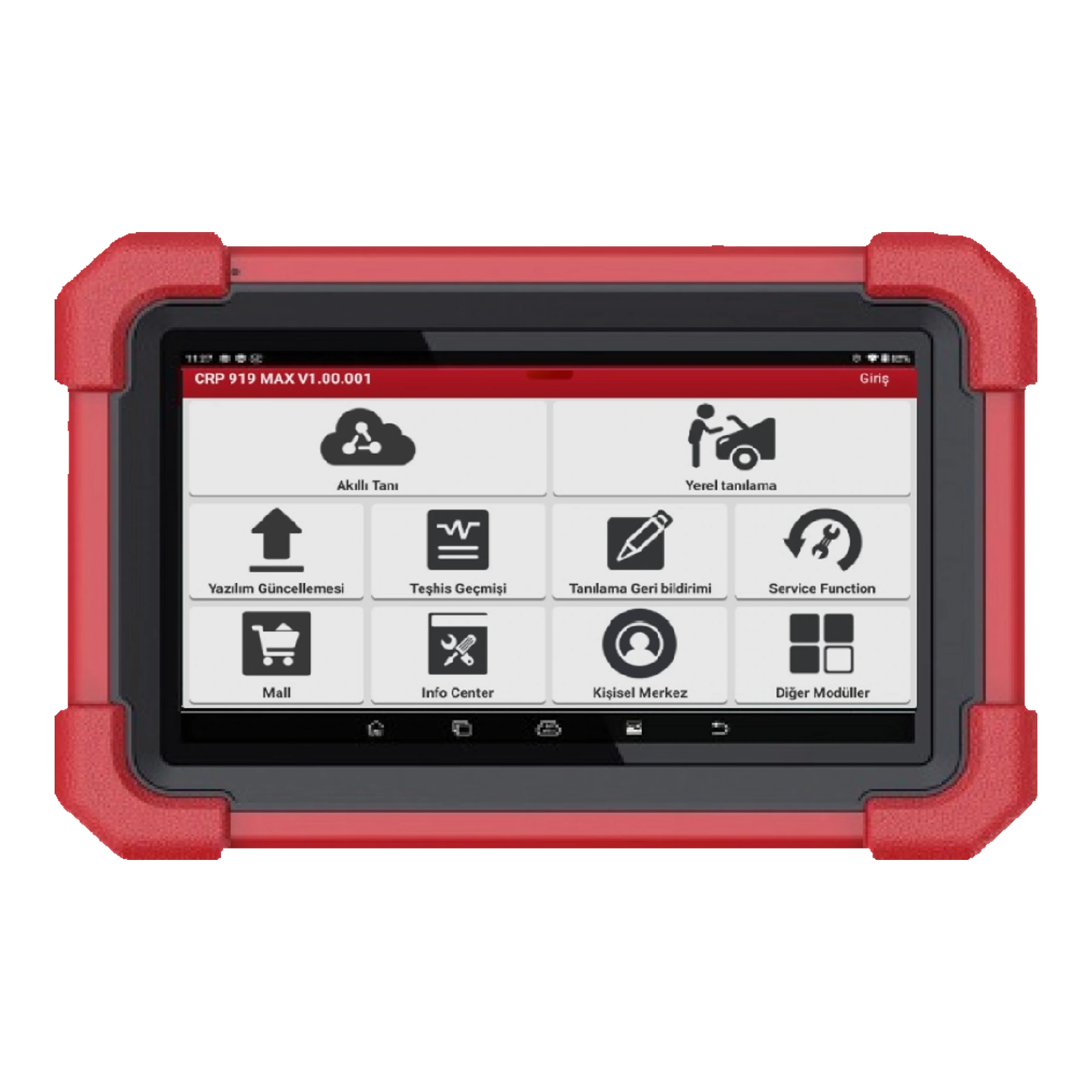
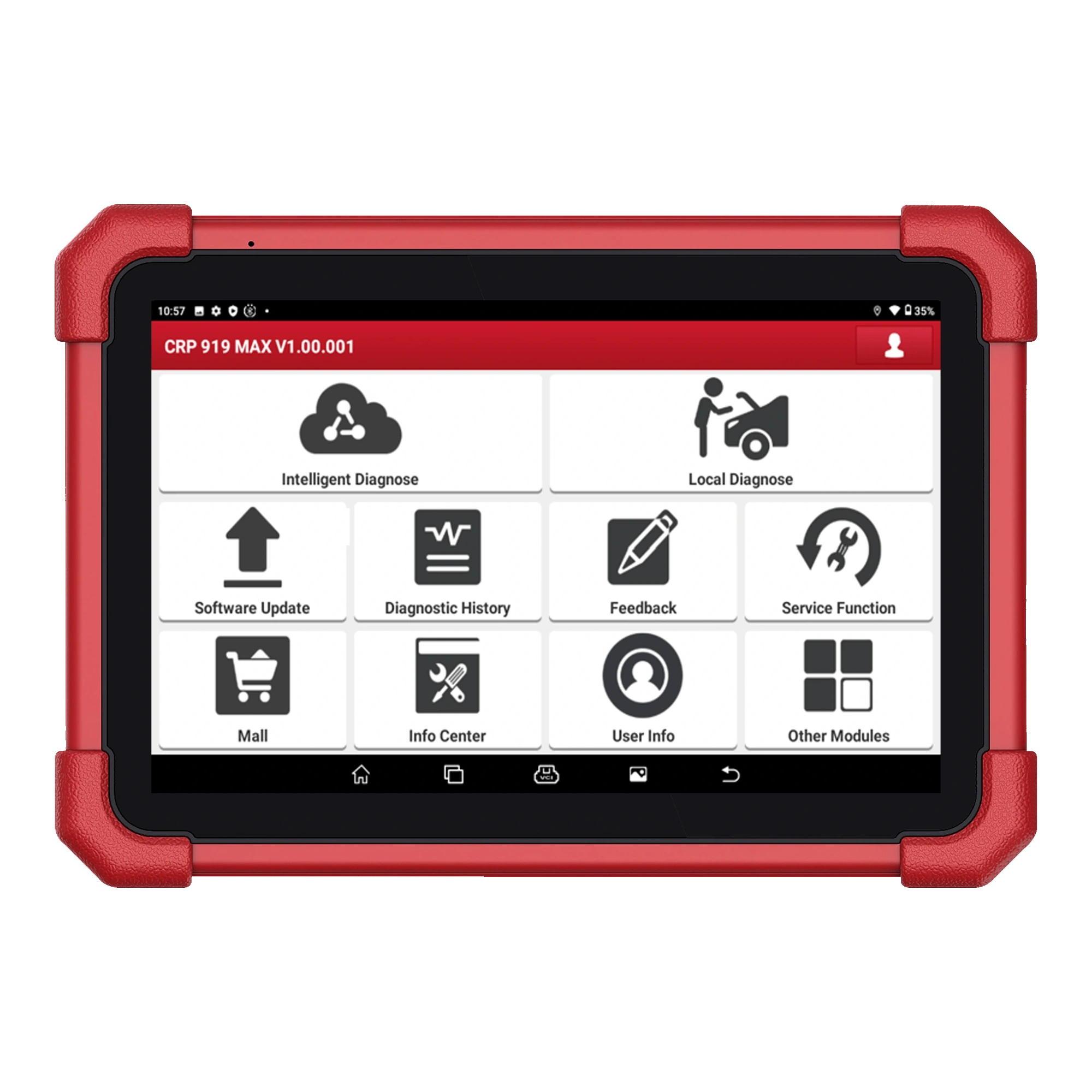
Launch CRP 919 MAX initial setup, registration, and update guide
The primary purpose of the Launch CRP 919 MAX during its first use is not just to turn on the tablet. Correct matching of the device with the account, DBScar VII connection, up-to-date vehicle software, and regular saving of the initial scan report directly affect subsequent service operations. The following sequence translates the registration, connection, update, and diagnostic steps from the official user manual into a daily workshop workflow.
Do not proceed to the next stage until each step is completed; do not share serial number and activation code in public areas.
Phase
Process to be Performed
Successful result
1
Charge the tablet, set the language and Wi-Fi network
Device goes online
2
Open a Launch account or log in to an existing account
User session appears
3
Enter the 12-digit serial number and 8-digit activation code
Device connects to the account
4
Update system and vehicle software
Update packages are installed
5
Test DBScar VII connection and initial scan
VCI and vehicle communication are verified
6
Save the pre-repair report
Initial vehicle record is stored
Decision guide
What parts are checked when the box is opened?
Before the first startup, physically separate the tablet, DBScar VII VCI, diagnostic cable, OBDII adapter, power and USB components, and the activation envelope. The official manual states that the package list may vary by sales region; therefore, compare the received parts with the names and quantities in the order list. Do not remove the labels on the tablet or VCI. The code in the activation envelope is used to link the device to the account and should not be added to product photos, service group messages, or public posts.
Check the model names on the tablet and DBScar VII. Other similarly looking Launch VCI models are not accepted in the same package.
Cable ends should not have bent pins, loose bodies, or shipping damage. Plugging a damaged part into the OBD socket risks vehicle communication and power.
Store the activation envelope in a safe place along with the invoice and device information after setup is complete. This information should not be confused with the serial number of a second device.
CRP 919 MAX tablet
DBScar VII VCI
Diagnostic cable and OBDII adapter
Charging and data cables
Activation code envelope
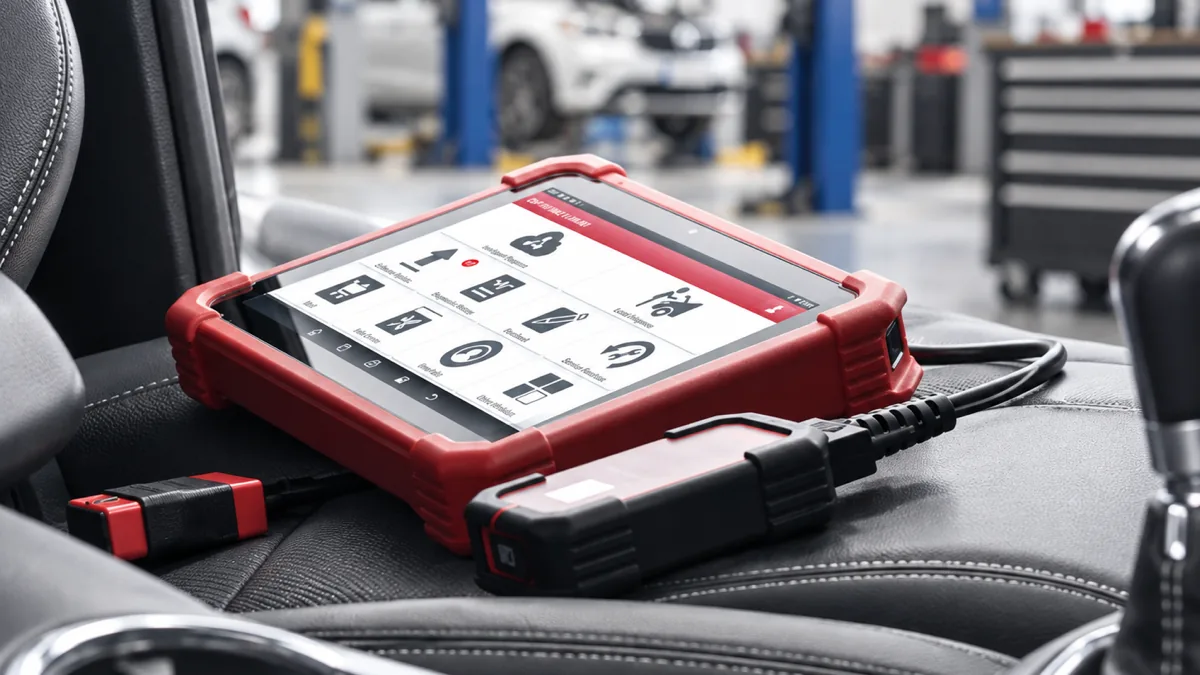
Preparation for initial setup in the workshop with Launch CRP 919 MAX and DBScar VII VCI
Decision guide
Initial charging, language, and Wi-Fi setup
Charge the tablet to a sufficient level before the registration process and connect to an uninterrupted Wi-Fi network. The manual explains that the network connection is used for account registration and online software updates. After the system language is selected, the language of the vehicle software is checked separately; a brand package previously downloaded in a different language may not automatically convert when the system language changes. The relevant software needs to be re-downloaded via the update center. Keeping the tablet connected to power, not turning off the screen, and not changing the network during the initial large download reduces the risk of incomplete packages.
The date and time should appear correctly on the Wi-Fi connection. Incorrect dates can cause errors in account sessions and secure connections.
If the workshop guest network limits download size or session duration, use another stable and reliable network.
System OTA updates and vehicle brand software are not in the same menu. Check separately in both areas if there are pending updates.
Decision guide
Launch account, serial number, and activation code
A new user registration is opened or an existing account is logged in from the input field on the main screen. The official manual requires entering the 12-digit product serial number and the 8-digit code from the activation envelope during new registration. Once this match is complete, the device is linked to the user account, and you proceed to the update center. If the serial number is not accepted, re-read the digits, ensure you are not confusing similar characters, and check if the product has been previously linked to another account. Trying random codes or using an envelope from another device is not the correct solution.
Use an account structure that protects the business's access instead of linking the device to a service technician's personal email account.
Designate authorized users instead of sharing the password with everyone in the service department. Account access, serial number, and renewal information can be kept in the same record.
If VCI activation was skipped during registration, the serial number and activation code can be re-entered from the VCI activation field in the User Information section.
Decision guide
How are vehicle and system software updated?
In the Software Update area, system components, frequently used vehicle brands, and other vehicle packages may be displayed in separate groups. Download the necessary common components and the vehicle brands your service works with during initial setup. The manual states that packages are automatically installed upon download completion. Downloading all unnecessary brands simultaneously on the tablet can increase storage space and update time; starting with the service's actual vehicle profile provides a more organized setup. The duration of the update rights may vary depending on the sales region and product account. Update campaigns for other countries are not automatically included for Turkish orders unless explicitly stated.
Complete common application, firmware, and ECU auxiliary components before brand packages.
Select frequently used brands; add rarely used packages from the update center when vehicles arrive.
Do not force-close the application during download. Do not interrupt power or switch to another screen during firmware repair.
After installation is complete, add the version and date information of the downloaded brand software to the service records.
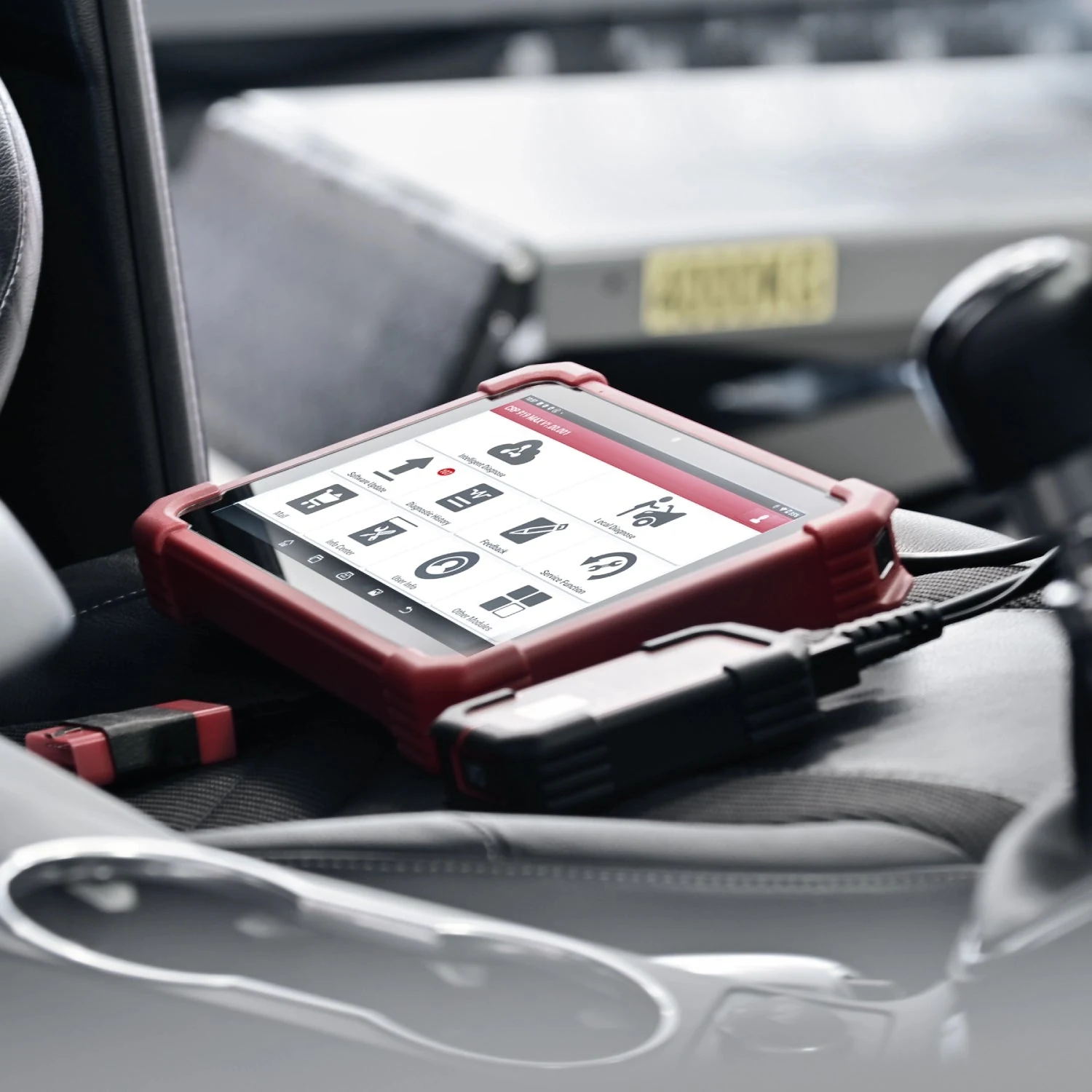
Launch CRP 919 MAX and DBScar VII VCI ready for connection in the vehicle
Decision guide
How to connect DBScar VII to the vehicle and tablet
Before vehicle connection, check the ignition status, battery voltage, and the physical condition of the OBD socket. Connect the DBScar VII to the vehicle's OBDII socket via the diagnostic cable and monitor the power indicator. According to the manual, the activated VCI connects to the user account and automatically pairs with the tablet via Bluetooth. Use the VCI status in the diagnostic application instead of randomly selecting devices from manual Bluetooth settings. If communication is not established, sequentially check VCI power, cable seating, correct account, and activation status.
Check the OBD socket and vehicle voltage
Monitor the VCI indicator
Log in to the correct Launch account
Verify the connection within the application
Decision guide
Initial vehicle scan and report saving
Automatic VIN recognition can be attempted on the first vehicle; if the identification is incorrect or incomplete, select the brand, model, year, and engine information manually. The Health Report scans supported control units and compiles the results into a single record. The manual specifically states that a fault code alone is not grounds for part replacement. Before clearing codes, save the pre-repair report and examine the freeze frame and relevant live data. Once the repair is complete, perform a second scan under the same conditions and compare it with the post-repair report.
Verify that the vehicle identification matches the license plate or work order before generating the report.
Do not clear codes on the first read. Clearing codes does not fix the cause of the malfunction and may cause the conditions of occurrence to be lost.
Select the correct pre- and post-repair report types; tracking the same vehicle with the same work order facilitates comparison.
Do not assume a control unit that cannot be communicated with is "fault-free." Investigate power, network, and the device's vehicle support separately.
Decision guide
Information to be kept after setup
The device account, serial number, VCI information, initial software versions, and proof of purchase should be kept in a secure record accessible by the business. The workshop name and contact information to be added to diagnostic reports are filled in only with the business's actual and current details. When the tablet is given to another employee, the account password, activation code, and customer reports should not be left open. If the device is to be sold or removed from the business, the account connection and customer data within it are managed according to the manufacturer's procedures; simply deleting the application does not imply ownership transfer.
Frequently Asked Questions
Most frequently asked questions by customers
What information is required for CRP 919 MAX registration?
The official manual requests the 12-digit product serial number followed by the 8-digit code from the activation envelope after creating a new user account. This information is used for device and account matching.
Should DBScar VII be manually paired from Bluetooth settings?
According to the manual, after successful activation, the VCI connects to the user account and automatically pairs with the tablet. In case of issues, first check VCI power, account, and activation status.
Is it necessary to download all vehicle brands on the first day?
No. Common system components and frequently used brand packages in the service can be prioritized. Other vehicle software can be downloaded later from the update center.
Are system updates and vehicle software the same?
No. The tablet's operating system and application components, and the diagnostic packages for vehicle brands can be in different update areas; both are checked separately.
Should fault codes be cleared immediately in the first scan?
No. First, record the pre-repair report, freeze frame, and relevant live data. Clearing codes does not fix the cause of the malfunction and may cause the initial occurrence conditions to be lost.
What is the difference between CRP 919 MAX and CRP919E BT?
The package, screen, software channel, and service scope of the two models are not assumed to be the same. In the comparison, check not only the price but also the DBScar VCI, CAN FD/DoIP requirements, vehicle list, update duration, and Turkish package contents together.
Does the CRP 919 MAX work on 2026 model vehicles?
A definitive answer is given based on brand, model year, engine, control unit, and the operation to be performed. Without checking with VIN or vehicle information in Launch's official vehicle and function query, a guarantee cannot be given for all 2026 vehicles.
Can it be used on commercial vehicles such as Doblo, Kango, Transporter, or Transit?
Basic scanning or specific service functions may be supported on these vehicle families; however, chassis, year, engine, and ECU differences will change the outcome. For each vehicle, the control unit and operation in the official coverage list must be verified separately.
What is the fee after the CRP 919 MAX update period expires?
The Launch Turkey product page states three years, while the store registration on the same domain states two years of free period. Since the Otobiltek package registration does not finalize this difference and there is no single TL renewal price independent of the serial number, the active period and renewal fee must be verified with the device's serial number, regional account, and order document.
Is the update campaign from another country valid on a Turkish device?
It is not automatically accepted. The update period is read based on the device's serial number, account region, and the rights shown in the sales package.