Quick comparison
Which menu serves what purpose during initial setup?
Diagnostic software update and Android system OTA update are not the same process.
Decision guide
1. Check the device and fixed cable before connecting
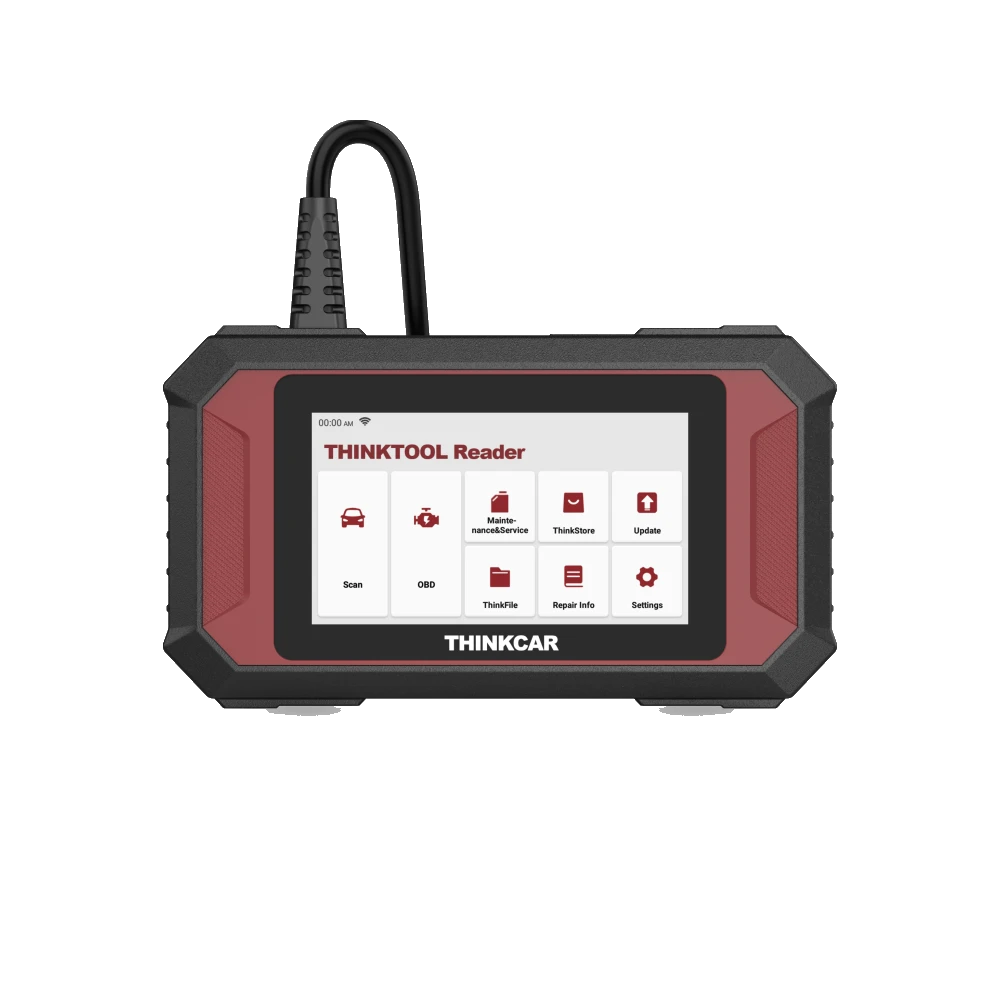
Reader 7 is a single-unit, wired diagnostic device. Before first use, visually inspect the housing, the bend point where the cable exits the device, and the 16-pin plug. Do not connect to the vehicle if there are bent pins, torn cable sheathing, or loose housing connections. The official guide does not describe a separate Bluetooth VCI, pairing code, or wireless vehicle connection; connecting to the internet and connecting to the vehicle are two separate matters.
The vehicle must be parked in a safe, level, and ventilated area. During the initial connection, the gear should be in Park or Neutral, and the parking brake should be engaged. These are general safety preparations; service procedures not found in the Reader 7 manual are not presented as device features.
Do not pinch the cable around the steering wheel, pedals, or moving seat rails. The OBD plug should only be inserted in the correct direction, without forcing. If the socket is physically damaged, follow the vehicle manufacturer's service procedure before attempting diagnostics.
Decision guide
2. Locate the OBD II socket and plug in Reader 7
The THINKCAR manual indicates that the OBD II socket is usually located on the driver's side, above the pedals, or near the dashboard in most vehicles, and there can be five common locations. If the socket is not visible, do not force the cover; refer to the DLC location in the vehicle's owner or service manual. Insert the Reader 7's fixed 16-pin plug straight into the socket. Once connected, the device powers on, powered by the vehicle.
- Locate the correct vehicle socket
- Check plug and pin orientation
- Keep cable away from pedals
- If the device does not power on, recheck connection and ignition
Decision guide
3. Check ignition and vehicle communication in the correct order
If the device powers on but the vehicle does not respond, the manual requires three basic checks: Is the Reader 7's OBD connection secure, is the ignition in the ON position, and is this vehicle supported by the device? It is not necessary to start the engine for every operation. If vehicle selection or ECU communication fails, record the full make, model, production year, and VIN information instead of randomly entering menus repeatedly.
If the connection is lost while data is streaming, the manual points to the possibility of a loose connection. Remove the device, check the plug and socket, and reconnect securely. If the same error persists, activating another system does not prove the device supports the relevant ECU.
The manual describes brief screen flickering during engine start as normal behavior related to electromagnetic interference. If there are continuous shutdowns, restarts, or overheating, stop use and have the connection and vehicle voltage checked by a qualified service technician.
Decision guide
4. Set up Wi-Fi, language, and time zone before first use
The Reader 7 manual requires Wi-Fi setup before first use. In the Settings section, the device scans for available networks; select a reliable and stable network. Basic settings such as language, time zone, and brightness are adjusted here. Wi-Fi does not replace vehicle communication; vehicle communication is via the fixed OBD cable, and online updates and auxiliary content are via internet connection.
A business-controlled connection is preferred over a public and untrusted network. It is important that the network is not interrupted during updates. The manual does not provide steps for account creation, activation code entry, or separate VCI activation for initial setup; screens from other Thinkcar models should not be transferred to Reader 7.
Decision guide
5. Differentiate between Update and OTA updates
The Update module on the main screen updates the diagnostic software and applications. For the Android system layer, the path is Settings, App Update, and OTA. On the OTA screen, the version is checked, and the on-screen steps are completed. The manual states that the device will automatically restart after a successful system update. Do not disconnect the network or the vehicle during updates.
Completing the Update menu does not mean all brand and model functions are unlocked. Vehicle coverage varies by software, model year, and control unit. The term 'lifetime update' in the official product document is a software promise for Reader 7; it is not a physical warranty, OEM account, or gateway service.
Decision guide
6. Do not clear codes during the first Scan and OBD scan
During the first vehicle test, select the correct vehicle record and read only supported systems. The Scan menu uses Reader 7's seven-system coverage, while the OBD menu uses standard engine and emission data. The purpose of the first scan is to see that the device communicates with the vehicle and to record the current status. Before clearing codes, record the fault codes, freeze frame information, readiness status, and accessible live data.
Clearing codes does not repair a physical fault and can reset emission monitors to a not-ready state. If there are records for ABS, SRS, engine, or transmission, physical inspection and safety checks are required. Since active test or ECU programming is not verified on Reader 7, these operations are not sought as part of the first-use test.
Decision guide
7. Save the initial report and check time with ThinkFile
ThinkFile creates the vehicle file using VIN and check time. The manual states that diagnostic reports, data stream recordings, and screenshots can be saved in this file. The initial acceptance record and the post-repair record can be compared in the same vehicle file. Do not show control units not scanned by Reader 7 as 'error-free' in the report; clearly state only the accessed systems.
The exact-model manual does not verify export to PDF, sharing via e-mail or messaging apps, or printing functions. Therefore, only in-device storage is promised for ThinkFile. The screenshot feature can be enabled from the Settings section.
Decision guide
8. Prepare a Feedback record if communication errors persist
If an ECU communication error persists after checking the plug and ignition, the manual recommends using the Feedback area within Settings. The record sent should include the vehicle year, make, model, and VIN. Also note the menu, system, and connection conditions under which the error occurred. This approach provides faster technical differentiation than simply stating 'the device is not working'.
- Vehicle year, make, and full model
- VIN or chassis information
- Inaccessible system and menu
- Update status
- Plug, ignition, and retry results
Decision guide
Unknowns about activation and selection of seven maintenance functions
The THINKCAR product document confirms lifetime free selection of any seven out of 28 maintenance types for Reader 7. However, the exact-model quick start guide does not explain from which screen the initial selection is made, whether the selection can be changed later, account or device transfer, or if an activation code is required. This information should not be copied from the VCI activation flows of other Thinkcar models.
Before selecting the seven functions, list the most frequently performed vehicle and maintenance operations. Verify the selection conditions via the device screen or THINKCAR support using the serial number. Do not turn a promise of changeability not present in the document into a sales claim.
Frequently Asked Questions
Most frequently asked questions by customers
Does Reader 7 need to connect to the internet for first use?
Yes. The exact-model guide requires Wi-Fi setup before first use. Vehicle communication is still established via the fixed OBD cable.
How to update Reader 7?
Diagnostic software and applications are updated from the Update menu on the main screen, while system software is updated via Settings → App Update → OTA.
Is an activation code required for Reader 7?
The exact-model quick start guide does not explain an activation code or separate VCI pairing step. Generic Thinkcar activation flows should not be applied to this model.
Can the seven maintenance functions be changed later?
This condition is not explained in the official exact-model document. It should be verified via the device screen or THINKCAR support before making a selection.
What to do if Reader 7 does not communicate with the vehicle?
Check that the plug is securely seated, the ignition is ON, and the vehicle is supported. If the problem persists, send a Feedback record with the year, make, model, and VIN.
Should fault codes be cleared during the first scan?
No. First, record the codes, freeze frame, readiness, and accessible live data. Clearing codes is not a repair and may reduce diagnostic evidence.