Evaluation Method
How was this guide prepared?
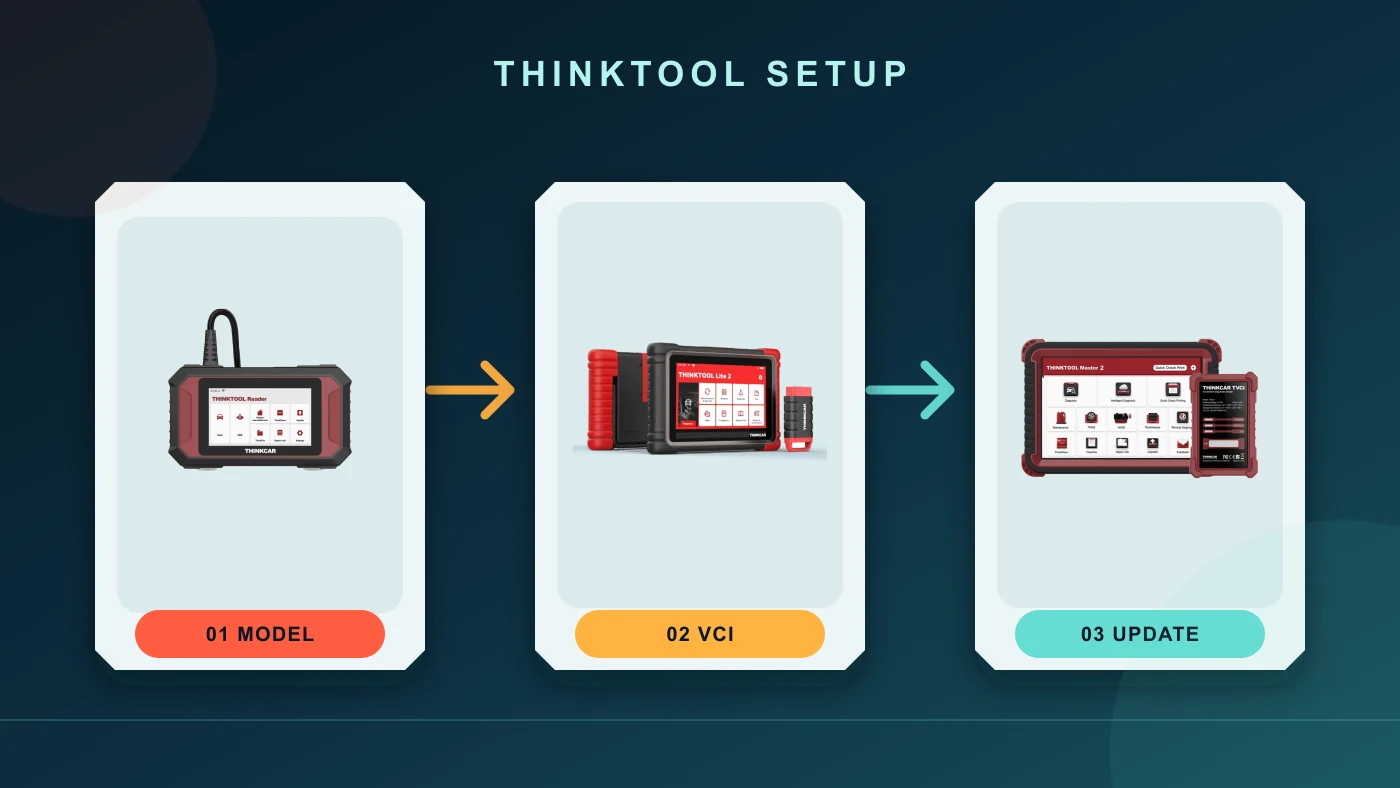
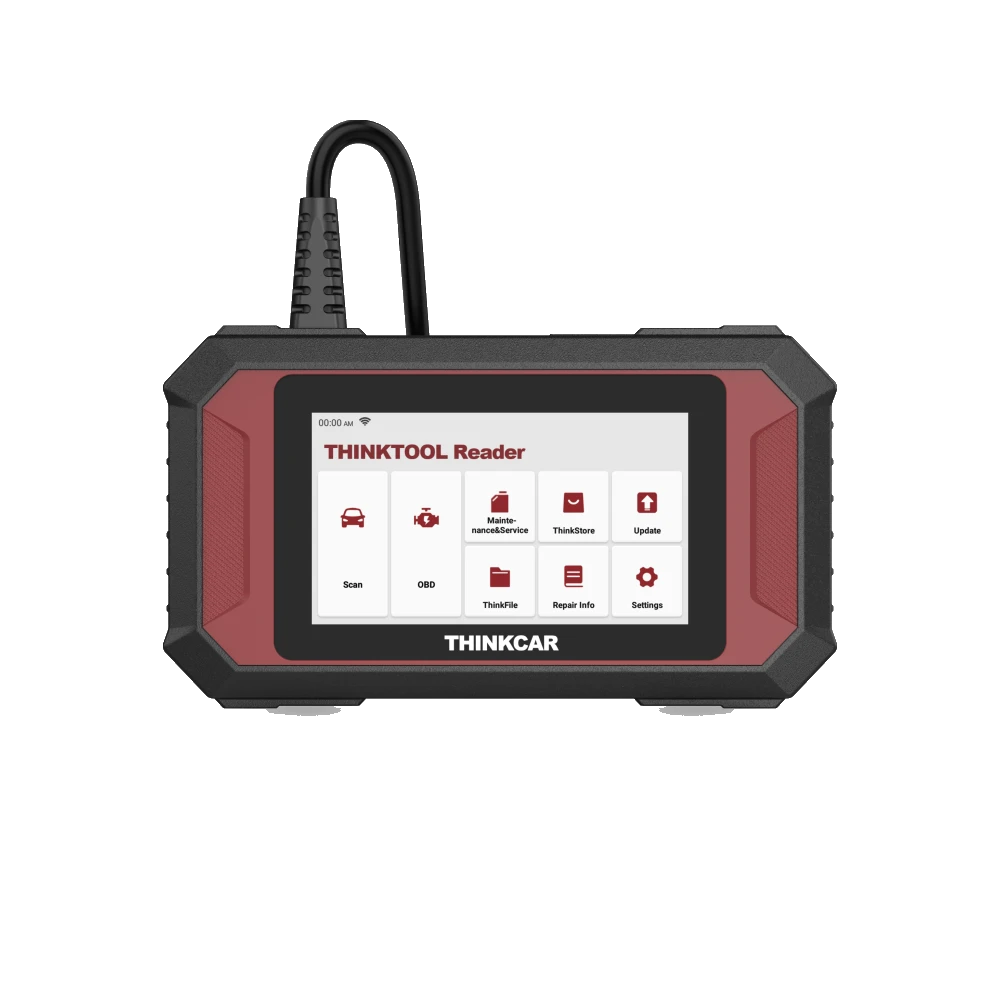
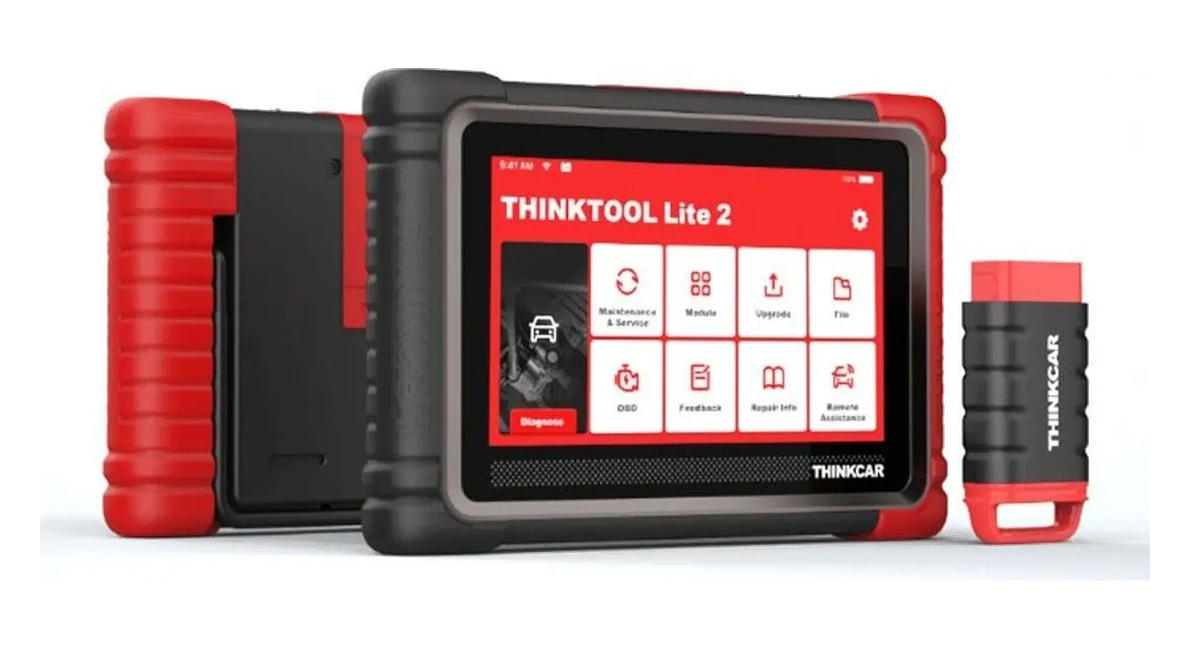
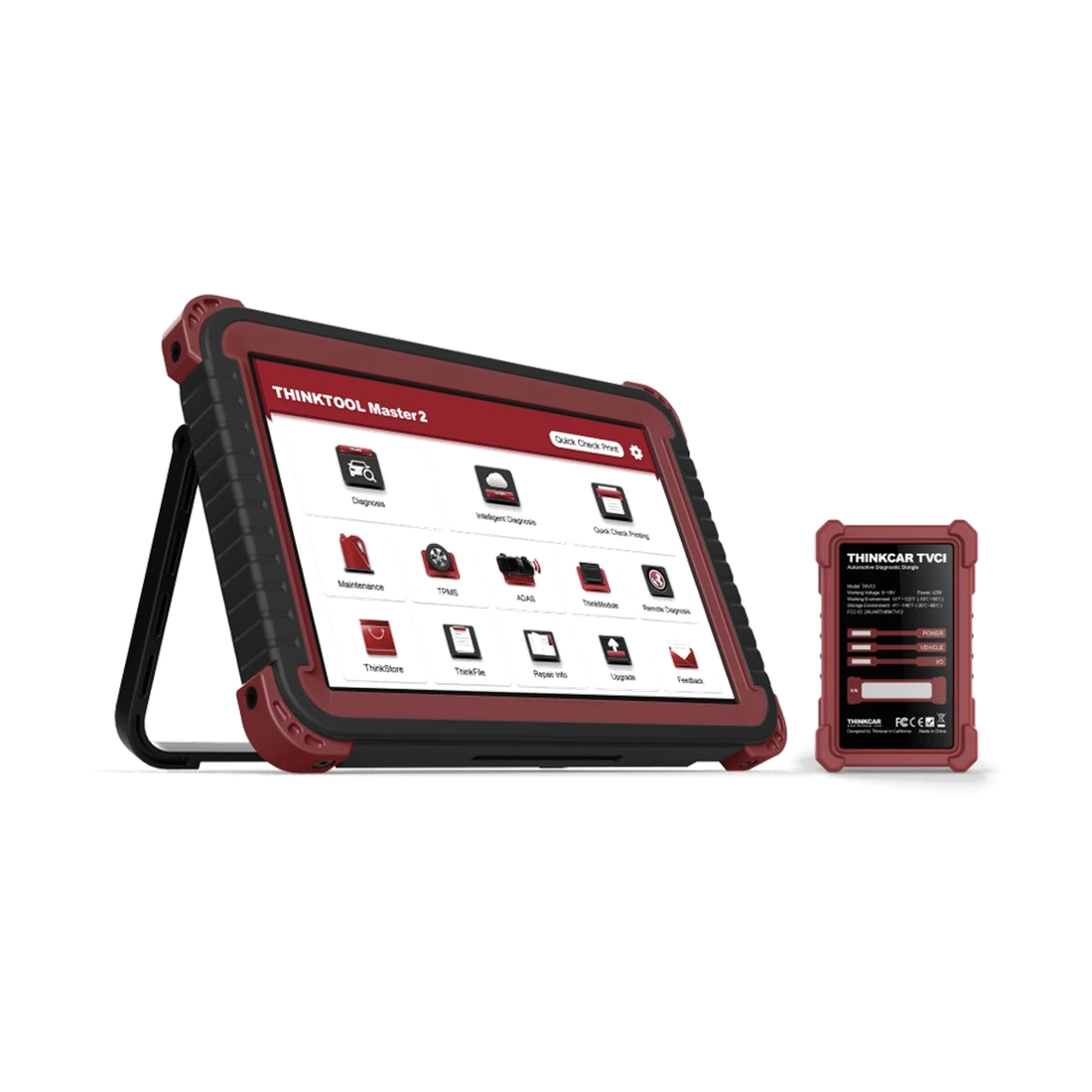
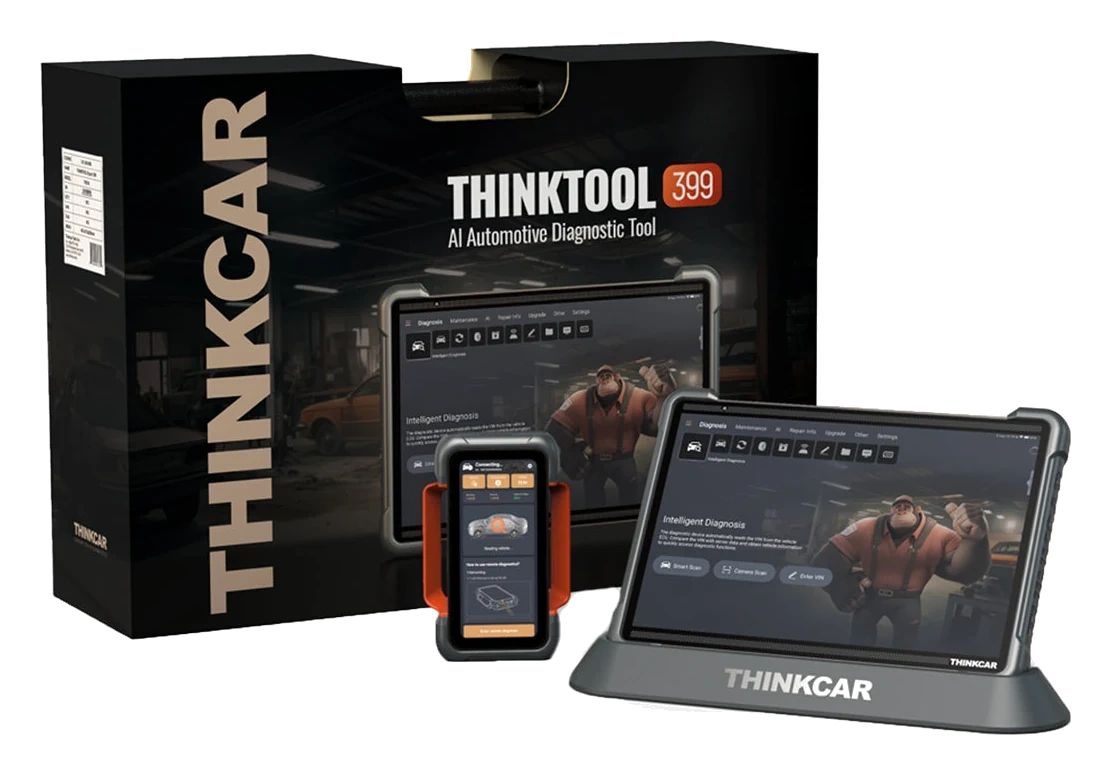
The cover uses photos of genuine Reader 7, Lite 2, and Master 2 devices verified for ownership in the Otobiltek catalog; the device screen or activation result is not representatively generated.
THINKCAR support and download centers, V5 product catalog, Master user manual, Reader 7 exact-model guide, and live vehicle coverage tool were reviewed. Menu names were used only for the model as verified in the respective official documentation.
- First, determine the exact model and VCI type
- Verify account, activation, software, and vehicle connection as separate steps
- Do not perform irreversible actions during the initial scan
When the application, menu, VCI, license, or account flow changes, re-verify with the respective exact-model documentation and device screen.
Decision guide
1. Match the exact model and delivery list before opening the box
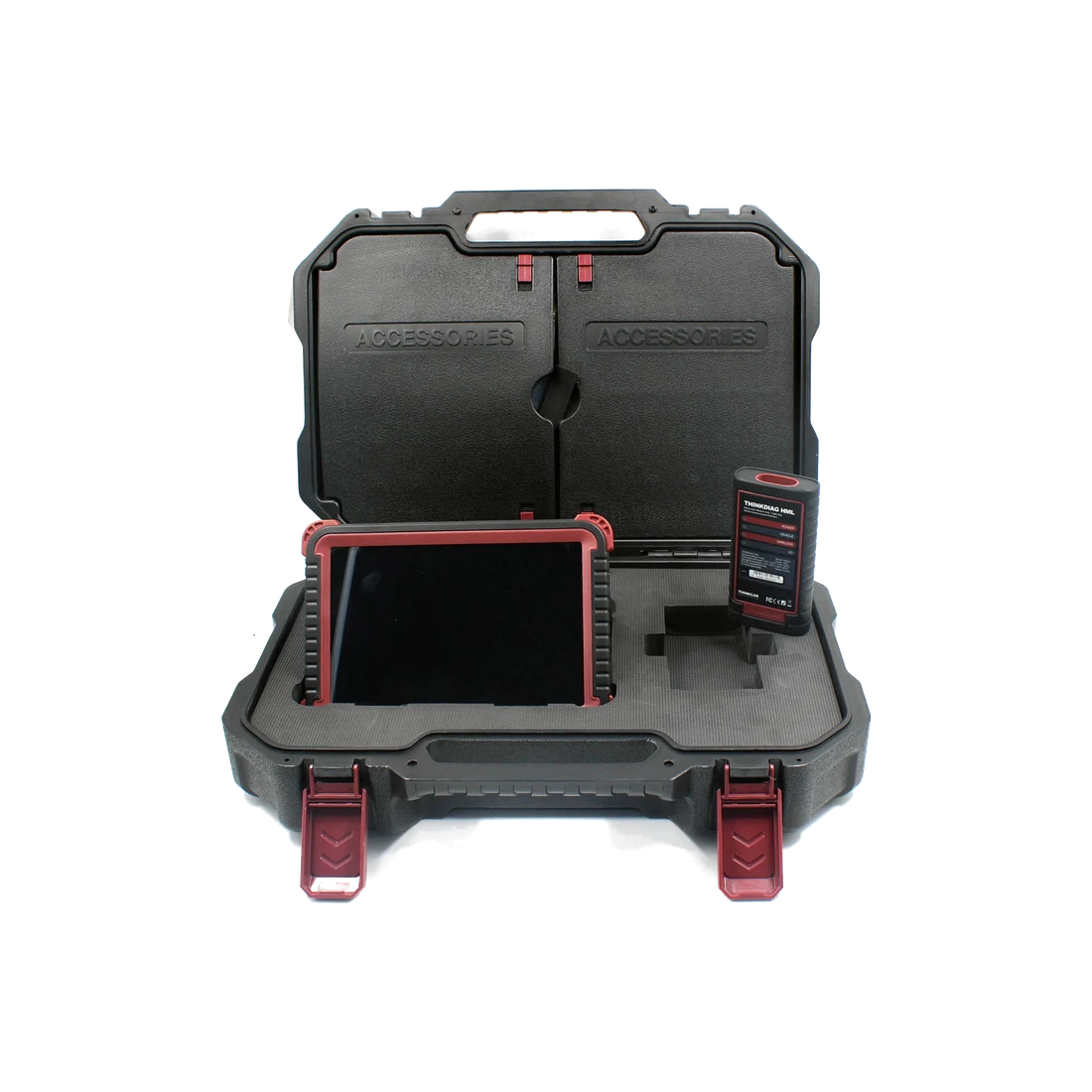
Compare the exact model name on the order document, box label, tablet body, and VCI. "Thinktool" alone is not a setup method; Reader 7, Lite 2, Master 2, Master X2, Expert 399, and Master CV may use different connection hardware. The tablet, VCI, main cable, power adapter, vehicle connectors, and purchased modules should appear as separate lines on the delivery list. If any part is missing or belongs to another model, open a record with the seller before activating the account.
- Exact tablet model
- VCI name and serial number
- Power adapter and main cable
- Purchased modules and connectors
- Invoice and license/package information
Decision guide
2. Differentiate models using wireless VCI from Reader 7
The Reader 7 exact-model setup guide shows a device powered by the vehicle via a wired 16-pin cable; it does not describe separate Bluetooth VCI pairing. The Master guide, however, describes tablet account and VCI activation as separate steps. For your Lite, Master, or Expert model, do not use only the Reader 7 flow; and for Reader 7, do not use another model's serial number and activation screen. If the model documentation cannot be found, verify the exact-model flow with the official download center and seller support.
Decision guide
3. Do not consider account creation, login, and VCI activation as the same issue
Creating an email account, logging into an existing account, and registering a physical VCI to an account are distinct operations. The Master manual states that login can be done with a valid account opened for another THINKCAR product, while VCI activation uses the device's serial number and code. The absence of a new registration screen on a pre-prepared device is not an error in itself. If the account owner is unknown, do not try random new accounts or activation codes found online.
Do not share serial numbers and activation codes in public comments or message groups.
Record the error text, exact model, and the step at which you are stuck.
If the code is rejected despite being correct, contact manufacturer or verified seller support.
Decision guide
4. Perform VCI selection, pairing, and vehicle connection in sequence
Multiple VCIs can exist under the same account. Do not download vehicle software without verifying the serial number of the interface used in the tablet settings. For wireless models, check that the VCI is powered by the vehicle's OBD socket, its indicators are lit, and the tablet has selected the correct interface. For Reader 7, ensure the wired plug is inserted correctly and without force. Do not confuse network connection with vehicle connection: Wi-Fi is for updates and online services; ECU communication is established via VCI or wired cable.
Decision guide
5. Differentiate system, application, vehicle package, and VCI updates
A single "update" button does not verify all layers simultaneously. The Reader 7 guide separates Update for diagnostic packages and Settings → App Update → OTA for the system layer. For the Master family, Software Upgrade, tablet system version, and VCI firmware notifications, if necessary, may differ. Do not download large packages without a stable internet connection, sufficient free space, and uninterrupted power. After the update is complete, record the version and license date.
Decision guide
6. Verify vehicle coverage before initial connection
The device powering on or the brand logo appearing in the menu does not prove that all ECUs and functions are supported on a specific vehicle. Use the THINKCAR live coverage tool to search for the exact device model, vehicle brand, model, year, system, and intended operation. CAN FD or DoIP support is a communication protocol; it does not automatically enable coding, programming, or all service functions. SGW and OEM account requirements must also be checked separately.
Decision guide
7. Maintain the current status during the initial vehicle scan
The initial test should be performed on a supported vehicle with a healthy electrical system. After checking the ignition position, vehicle voltage, and OBD connection, use reversible steps first, such as VIN reading, system scan, fault codes, and live data. Clearing codes, adaptations, or ECU programming are not setup tests. The initial report and, if possible, freeze frame data are saved; thus, the pre-connection status is not lost.
- Verify VIN and vehicle selection
- Save the initial scan report
- Save fault and freeze frame data before clearing codes
- Do not use active tests or programming as setup verification
Decision guide
8. Verify the additional package for Master CV, EV, and service modules
For Master CV setup, in addition to the tablet and HML VCI, 12/24 V communication, commercial vehicle software, and the appropriate physical connector for the vehicle are required. For products like CE EVD, Scope Box, T-Wand, or ThinkPrinter, the compatible main device, software, and connection conditions must be checked separately. The "optional" appearance of a module in the product catalog does not mean it is included in the box. Training, protective equipment, and stable power procedures are mandatory requirements separate from device setup for high-voltage or ECU programming tasks.
Decision guide
9. What information should be prepared when opening a support ticket?
If the problem persists, instead of just saying "device not connecting," prepare the tablet and VCI model, masked serial number, account and license status, software version, vehicle VIN, year/engine, ECU or function that cannot be accessed, network type, and error text. Proof of purchase and box contents should also be included. Activation codes, account passwords, and full serial numbers should only be shared as needed through verified support channels.
Frequently Asked Questions
Most frequently asked questions by customers
Do Thinktool devices come set up and activated?
Sales and package conditions may change. A single answer for all products cannot be given without verifying the device's account, VCI, and license screen with the delivery document.
Is an activation code required for all Thinktool devices?
It cannot be generalized as no; the model flow is different. The Reader 7 exact-model guide does not explain separate VCI activation, while the Master guide includes a VCI activation step.
Where can I find the Thinktool VCI serial number?
Compare the physical VCI label belonging to the model with the VCI list in the device settings. Do not confuse it with the tablet serial number.
If Wi-Fi is connected, will the vehicle be connected?
No. Wi-Fi is for internet and updates. Vehicle communication is established via a wired OBD cable or the VCI belonging to the model.
Should all vehicle packages be downloaded during initial setup?
Consider the required brand packages and available space. First, verify the correct VCI, account, and license; unnecessary packages can fill up storage.
Should codes be cleared after setup is complete?
No. Deletion should not be performed without recording the initial scan report, codes, and freeze frame data. Clearing codes does not repair physical faults.
Is the factory reset the solution for the 'VCI not active' warning?
It is not the first solution. Check the network, account, correct VCI selection, serial number, and activation status; if necessary, use manufacturer or seller support.
Are all vehicles and functions unlocked after setup is complete?
No. The vehicle, model year, ECU, license, VCI, secure access, and the intended operation are verified separately with the official coverage tool.