Decision guide
Match model, application, and vehicle information before setup
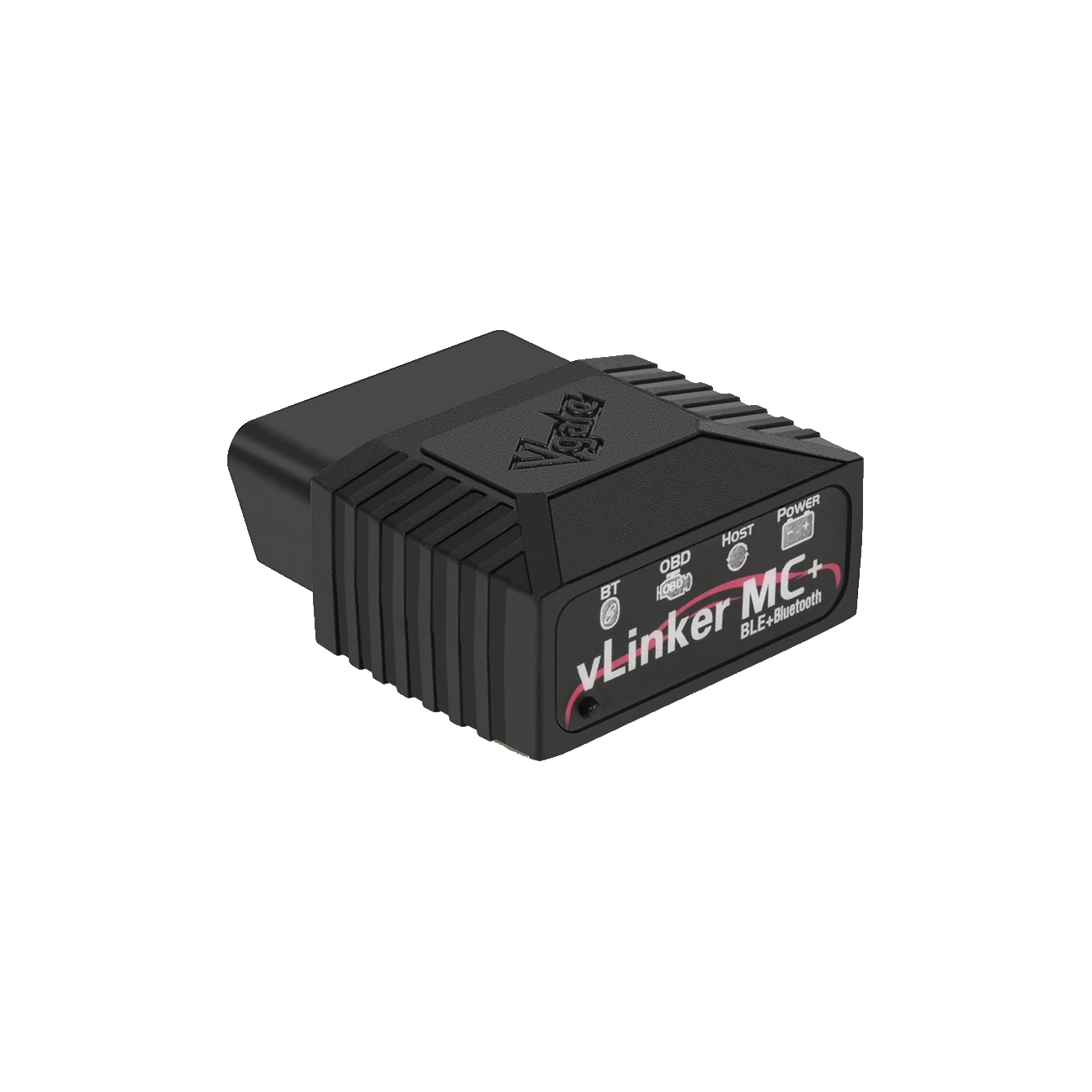
Note that the model in the box is indeed "vLinker MC+ Bluetooth", the phone's operating system, and the exact name of the application you will use. Vgate may use different connection names for MC, MC+, Wi-Fi, and based on the operating system within the same housing family. A similar product name does not mean it is the correct hardware. Also add the vehicle make, model, production year, and intended operation to the same list; if any of this information is missing on the application's support page, do not promise exact compatibility.
Standard OBD-II engine-emission communication and manufacturer-specific access such as ABS, airbag, transmission, body module, or coding are not the same scope. The adapter provides physical connection to the vehicle network; which modules are accessible is determined by the application, license, and vehicle.
Vgate's official page provides examples of applications such as BimmerCode, Torque, FORScan, JScan, OBD Auto Doctor, and OBD Fusion. These names are not included in the package content or a promise of free licenses. Application fees, subscriptions, brand packages, and operating system support must be checked from the application's own store and support page.
- Full model: vLinker MC+ Bluetooth
- Phone operating system
- Application and license
- Vehicle make-model-year and intended operation
Decision guide
Order of secure connection to the vehicle
The vehicle is parked on a level and secure surface; the automatic transmission is in P position, and the parking brake is applied. If the OBD socket shows tilted pins, loose parts, or foreign objects, do not force the adapter. In Vgate's startup flow, the adapter is plugged into the OBD socket, and the ignition is turned to the ON position without starting the engine. If the LEDs do not light up, check the socket power supply, fuse, and physical contact before proceeding to phone settings.
Do not immediately delete existing fault codes during the first read session. Record the code, status, control unit, and freeze frame data if available. Deleting codes can reset emission readiness monitors and obscure the conditions under which the fault occurred.
If coding or writing operations are to be performed, the status of the phone and vehicle battery must be evaluated separately. Starting the engine, turning off the ignition, removing the adapter, or connecting another application to the adapter simultaneously can interrupt communication. The application's own safety guidelines take precedence over general internet instructions.
Decision guide
Android connection: correct device name and 1234 code
In Vgate's Android step, after plugging the adapter into the OBD socket and turning on the ignition, press the black connection button on the adapter. Search for the name "vLinker MC" or "vLinker MC-Android" in the phone's Bluetooth list; do not select channels named "vLinker MC+" or "vLinker MC-IOS" for Android pairing. If a PIN is requested, use the manufacturer-specified code 1234. After pairing is complete, select Bluetooth and the paired adapter within the application.
Depending on the Android version, Nearby Devices or Bluetooth permission may be required. If the phone sees the adapter but the app does not, check app permissions, the selected connection type, and whether another OBD app is running in the background.
The message "Connected to adapter" does not mean it is also connected to the vehicle control unit. While the phone-adapter layer is working, ECU communication may not be established due to ignition, vehicle profile, protocol, or vehicle support. Read error messages according to these two layers.
- Press the black connection button
- Select the vLinker MC-Android channel
- Use 1234 PIN if necessary
- Re-select the adapter within the app
Decision guide
iPhone connection: start from the app, not Bluetooth settings
Vgate specifies that on the iOS side, MC+ connection should not be made from the phone's general Bluetooth pairing screen; it should be initiated from the adapter menu within the compatible OBD application with Bluetooth turned on. Therefore, not seeing the device in iPhone settings is not a fault in itself. Grant Bluetooth access to the app, select the supported vLinker/BLE option as the connection type, and initiate the vehicle connection from within the app.
When using BimmerCode, other OBD apps should be completely closed, additional Bluetooth connections should be minimized as much as possible, and the correct adapter type should be selected in BimmerCode settings. BimmerCode also offers a compatibility check based on vehicle generation; the presence of the adapter in the general list does not mean unconditional support for all BMW models.
If the connection fails, remove and reinsert the adapter securely, check the LEDs, verify the app's Bluetooth permission, and restart the phone/adapter. Third-party CarPlay hardware or other accessories connected to the vehicle network may affect communication.
Decision guide
Compatibility and coding limitations when using with BimmerCode
BimmerCode's official adapter page lists the vLinker MC+ Bluetooth model. The same page also clearly states that each adapter cannot be used with every vehicle. The vehicle selection within the app should be used to check the E, F, G, I, or R generation and production year. Hardware not present in the vehicle cannot be added solely by menu selection; visible options depend on the control unit software and physical hardware.
Before coding, the engine should be off, and the ignition/diagnostic mode should be as requested by the application; the gear should be in P, the parking brake active, and unnecessary electrical consumers turned off. The backup created by BimmerCode should be preserved, and only the planned changes should be applied in a single session.
Coding is changing supported settings in the control unit. ECU firmware flashing, immobilizer, or key programming are different equipment and risk levels. Device sales should not be considered a promise covering these professional programming operations.
- Found on BimmerCode official list
- Vehicle generation checked separately
- Backup and stable power required
- Coding is not ECU programming
Decision guide
MC+ vs. FS and programming differences when using FORScan
Vgate lists FORScan as a compatible application example on the MC+ product page and states that the adapter provides hardware access to the Ford MS-CAN network. However, FORScan's current official download page lists the vLinker FS USB as the recommended adapter for Windows; and vLinker FS Bluetooth for iOS and Android. MC+ is not on this recommendation list. Therefore, MC+ connection with FORScan should be verified based on the vehicle, operating system, and application version, and should not be automatically considered suitable for critical programming tasks.
Even for read operations such as fault codes, module scans, or live data, the vehicle and adapter compatibility should first be tested with the free viewer/demo. The statement "MS-CAN supported" does not mean that every module and every service function is accessible.
Connection interruption during PCM writing, PATS, key operations, or module programming can render the control unit inoperable. For such tasks, the hardware, license, vehicle battery support device, and rollback procedure recommended by FORScan at that time should be used. Product selection should not be based solely on price or Bluetooth convenience.
- Vgate: FORScan application example and MS-CAN support
- FORScan: current recommendation list includes FS family
- Read compatibility for MC+ even tested on the vehicle
- Recommended hardware for programming is essential
Decision guide
Check firmware version and correct update channel
Firmware should only be updated via Vgate's official download center or verifiable redirection from the product packaging. Version files for vLinker MC are published in the Vgate download center; installation will not proceed without matching file names and hardware revisions. Do not use random forum attachments, repackaged applications, or files belonging to different vLinker models.
Vgate's Android update flow describes pairing the vLinker MC-Android channel with the 1234 code first, followed by automatic connection and download steps in the official firmware update application. Do not remove the adapter, disconnect the ignition, or break the phone connection during the update.
Instead of forcibly updating a working device simply because a new version is available, read the version notes, application compatibility, and manufacturer's instructions. After the update, re-test basic OBD connection on a controlled vehicle; critical operations should not be used as the first test.
Decision guide
Order of checks based on symptoms for connection issues
When troubleshooting, instead of changing all settings at once, determine which layer the symptom occurs in. If LEDs are not lit, check the vehicle socket or power supply; if the phone does not see the adapter, check the connection button, device name, and permissions; if the app sees the adapter but does not connect to the ECU, check ignition, vehicle profile, and protocol; if the connection breaks during operation, check the battery, distance, other applications, and the phone's battery management.
Connecting to the iOS channel by mistake on Android, expecting pairing from the general Bluetooth screen on iPhone, and selecting the wrong adapter type in the app are the easiest mistakes to avoid. First, return to the official connection sequence; then, try changing the phone or app to test only one variable.
If the adapter overheats, the connector feels loose, the pins appear bent, or the vehicle network behaves unusually, stop using it. Continuous connection attempts will not resolve a physical fault. The OBD socket and vehicle electrical system should be checked by a qualified service technician.
- No LED: power supply and socket
- Device not visible: channel, button, and permissions
- No ECU: ignition, profile, and protocol
- Disconnection: battery, distance, other apps, and battery management
Decision guide
Perform secure acceptance test after purchase
Within the return and support period, record the device label, housing, OBD pins, and package contents. Before purchasing an application license, if possible, test if the adapter appears on the phone with a free or demo version, and perform a basic ECU connection and check supported standard data. If the test results are noted with the vehicle, phone, app version, and connection name, technical support will proceed faster.
Do not delete engine fault codes, perform service functions, or attempt coding in the first test. First, check the VIN/vehicle profile, standard engine RPM, or a few supported live data points, and connection stability. The same PID is not expected to be found on every vehicle.
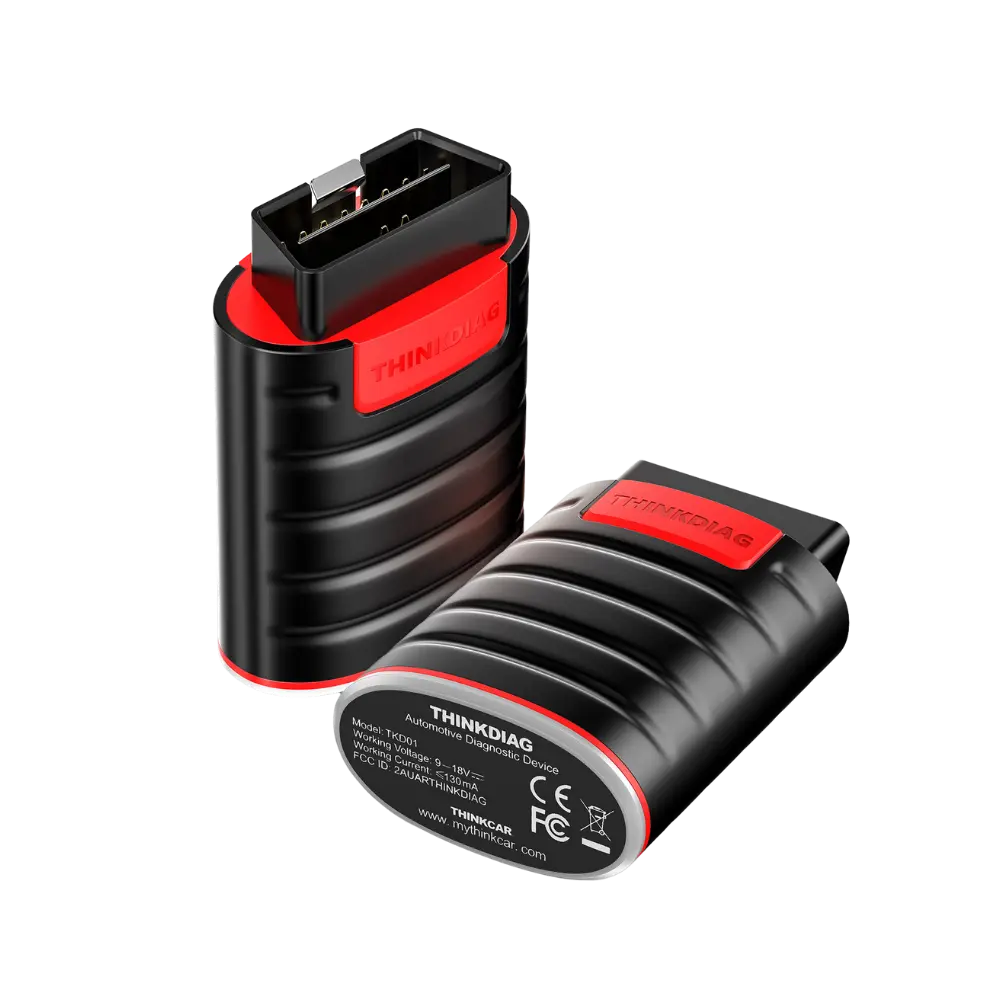
Evaluate the purchase decision not only by the "works" result but also by the total cost of ownership. Necessary application licenses, subscriptions, brand packages, and whether the planned operation is supported are separate from the device price. If professional service is required, a device class offering reporting and active tests may be more appropriate than a mobile adapter.